


Google’s Search Console Insights dashboard puts a lot of data in front of you: new content stats, trending queries, referral links. What it doesn’t do is tell you which of those numbers should actually change what you publish next.
We had the same reaction when Google rolled out Search Console Insights back in 2021 — a lot of promise, but not a lot of direction on how to use it. We’ve since learned some pretty insightful (pun intended) ways to put it to work, and we’re going to share them with you.
In this article, we’ll walk you through everything you need to know about Search Console Insights — what it is, which reports it includes, and how to use each one to inform your content and SEO strategy.
By the end, you’ll know exactly which of these reports deserve a regular spot in your workflow, and how to turn what they show you into real traffic gains.
In This Article:
What is Google’s Search Console Insights?
If you publish regularly, you already know the hassle of switching between Search Console and Analytics just to see whether a new post is landing. Search Console Insights was built to close that gap.
It’s a user-friendly dashboard that combines data from both Google Search Console and Google Analytics. It’s designed to help content creators and website owners quickly understand how their content is performing in Google Search and on their website.
Overall, it’s a powerful tool that can help you get more insights into how your content is performing in Google Search and make data-driven decisions to improve your content marketing and SEO strategies.
Think of it as an easy-to-read mashup of data from Search Console and Analytics that can help you make informed decisions about your content strategy.
Why Use Search Console Insights?
Why should you use the Search Console Insights reports when you already have access to both Search Console and Google Analytics? Here are a few important reasons:
- Time-saving: Instead of bouncing between Search Console and Analytics, you get a quick overview of your content’s performance in one place. It’ll also send you a once-monthly report in your email.
- User-friendly interface: The dashboard is designed with content creators in mind, making it easier to understand complex data without needing to be an SEO expert.
- Content-focused metrics: It highlights the metrics that matter most to content creators, like top-performing pages and trending queries.
- Actionable insights: The tool provides clear, actionable information (straight from Google itself) that can help you improve your content strategy.
According to Google, “We care about the content ecosystem, and we appreciate the web creator community that makes the web interesting and useful for so many people. We hope that with time, Search Console Insights will help creators improve and achieve their goals.”
How to See Your Google Search Console Insights
Ready to dive in? On desktop, go to search.google.com/search-console/insights, sign in with the Google account connected to your Search Console and Analytics accounts, and select the property you want to view insights for.
If you’d rather check things on the go, open the Google app on your phone, tap your profile picture, select “Search Console Insights,” and choose the property you want to view.
Have your insights open? Let’s walk through each of the cards and reports.
Search Console Insights Reports Tour
Each card and report inside the search insights dashboard can be used in different ways to help with your content and SEO strategies. We’ll share the tips we’ve learned to make use of each one!
1. New Content Report

Waiting a full month to find out whether a new post is gaining traction costs you weeks you could spend promoting it while it’s still fresh. The New Content card fixes that by showing your content published in the last 28 days.
It displays the page’s title, the date it was published, the number of views it’s gotten so far, any top search queries it’s ranking for, and its average engagement time.
This report is great for quickly seeing how your newest content is performing, and whether it’s already gaining traction in search rankings through the visits and keywords driving organic clicks.
How to Use the New Content Report to Boost SEO
You can use the New Content report to help boost your site’s SEO. I’d suggest opening it at least once a week to keep tabs on new content. If you notice an article performing particularly well, consider:
- Creating more content on similar topics
- Promoting that content more heavily on social media
- Building more internal links to it from other relevant pages on your site
On the flip side, if new content isn’t performing well and doesn’t yet have any rankings that are driving traffic, you might want to:
- Revisit your keyword strategy for that content
- Improve the title and meta description to make it more clickable in search results
- Update the content to better match search intent
Pro Tip: Remember, new content can take some time to get crawled, indexed, and start ranking. There are a few ways you can expedite this, though! Check out 9 Proven Ways to Get Google to Index Your Website Right Away.
2. Most Popular Content Report

It’s easy to keep promoting whatever you just published and forget about the pages that are already pulling in steady traffic. The Most Popular Content card shows your top-performing pages ranked by page views, so nothing quietly successful slips past you.
It displays the page title, the number of page views, and the average time users spend on that page. It’ll also add a highlighted green notification if a particular article has a high engagement time.
You’ll notice arrows at the bottom of the card — they let you scroll past your top three articles to see more.
This report gives you a quick snapshot of what content is resonating most with your audience. Use it to:
- Identify your “star” content
- Understand what topics your audience finds most engaging
- Spot trends in the types of content that perform well on your site
Together, these patterns show you which of your existing content is worth building on further.
How to Use the Most Popular Content Report to Boost SEO
Once you’ve taken a look at the list of your most popular content, consider:
- Updating and expanding these popular pages to keep them fresh and relevant
- Creating more content on similar topics or in similar formats and linking it with the original
- Using these popular pages to link to other related content on your site
- Promoting these pages more heavily in your marketing efforts
Another thing you can consider is adding a widget or section to your website to showcase your most popular content:

BONUS: Click on Pages in the New Content and Popular Content Reports
Somehow, it took us months of using the Search Console Insights report to realize we could click on the pages in these top two report cards! It’s super handy for drilling down into the analytics for a particular piece of content.
Click on one of your new or top-performing pieces in either of the first two reports to see:
- Views and engagement time for the page
- Top traffic channels for the traffic to the page
- Most searched queries that rank for the page
- Most trending queries that rank for the page
- Any referral links (domains) to the page
With all of this data for each of your top pages, you can figure out which keywords to work on to rank higher, which channels to use to drive traffic, and whether there’s a keyword or channel that’s unexpectedly high or low. You can also find out if there’s a site that’s linked to your content and decide if you’d like to do some sort of partnership or promotion with them.
Easy to Miss
Search Console Insights isn’t just a static list. Clicking any page inside the New Content or Most Popular Content cards drills into that page’s own traffic channels, queries, and referral links without ever leaving the dashboard.
3. Top Traffic Channels Report

The Top Traffic Channels card breaks down where your website traffic is coming from. It typically shows channels like Organic Search, Direct, and Referrals from other websites.
This report helps you understand which channels are driving the most traffic to your site and how each channel compares to the others. We usually check this one right after reviewing rankings, since a channel mix that’s too dependent on a single source is worth catching early.
How to Use the Top Traffic Channels Report to Boost SEO
Based on your findings in the channels report, you can:
- Double down on your strongest channels by creating more content tailored to them
- Investigate unexpected traffic sources to see if there are new opportunities
- If Google Search isn’t your top channel, work through our WordPress SEO checklist to find quick wins
- If you’re getting a lot of referral traffic, consider reaching out to those sites for potential partnerships
To learn more about each of the channels that might be shown in this report, check out What Are Google Analytics Channels? GA4 Channels Guide.
4. Google Search – Most Searched Queries Report

This report shows the search queries (up to 50) that are driving the most clicks to your site from Google Search. It displays the query, the number of clicks, and your average position. It also adds a green highlighted notification if your site is showing in the top 5 results for that query.
This report is gold for understanding what your audience is searching for when they find your site. Use it to figure out what your most successful keywords are and understand what’s popular with your audience right now.
How to Use the Most Viewed Queries Report to Boost SEO
With your most viewed query data, you can:
- Create more content around your top-performing queries to take advantage of that interest
- Optimize existing content more for these queries if you haven’t already
- Look for related keywords that you might be able to add to your existing content or create new content around
- If you see queries with high impressions but low CTR, work on improving your meta titles and descriptions
- Really focus on optimizing and building links to content that’s getting clicks but doesn’t rank in the top 5 positions
For more on boosting your SEO using query data, check out How to Use Google Search Console for SEO: Top 11 Hacks and How to Use Google Search Console for Keyword Research.
Using WordPress?
You can get your top-performing keywords report right inside your WordPress dashboard with MonsterInsights, the WordPress analytics plugin!
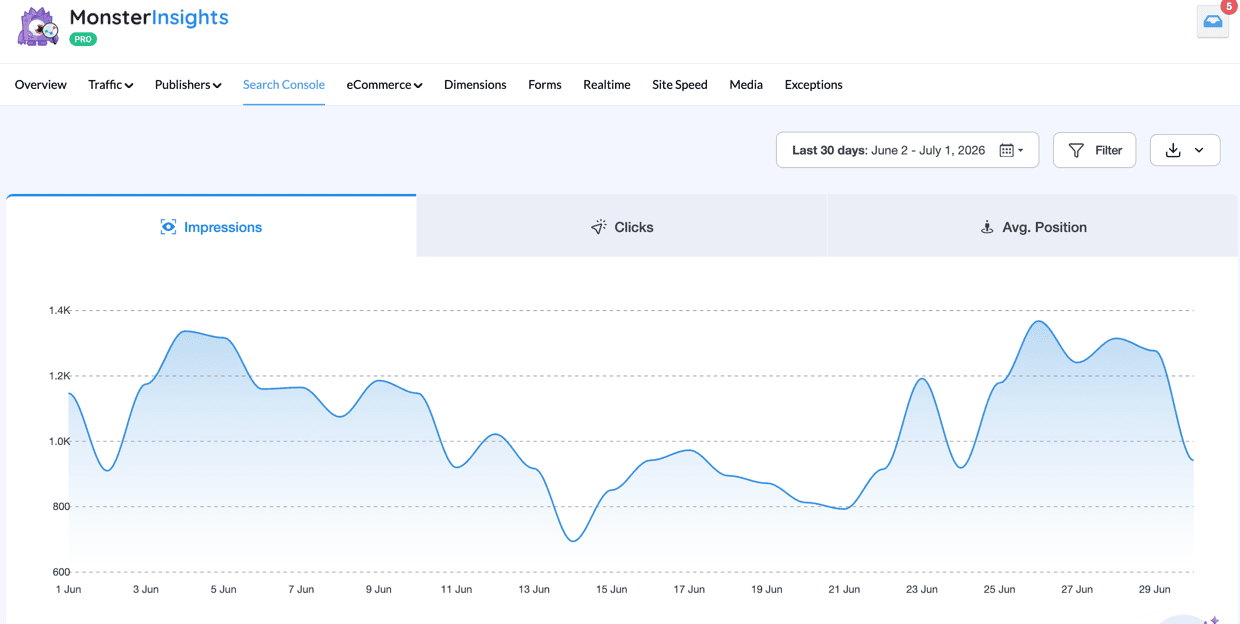
See Your Search Console Data Without Leaving WordPress
MonsterInsights is the best Google Analytics plugin for WordPress. It pulls your top search queries and landing pages straight into your dashboard, alongside button clicks, eCommerce purchases, and form submissions that Google Search Console never tracks at all.
Start Tracking Your Search Traffic5. Google Search – Most Trending Queries Report

The Most Trending Queries report is our favorite one in Search Console Insights. We check it regularly to quickly spot any big increases in rankings and traffic for any of our focus keywords!
This report shows search queries that have seen a recent increase in clicks to your site. It displays the query, the average position in search results, and the percentage increase in clicks.
This report helps you spot emerging trends and opportunities for your site. You’ll be able to identify topics that are gaining traction, spot seasonal trends, and more.
How to Use the Most Trending Queries Report to Boost SEO
With the insights you gain from your most trending queries report, you can:
- Quickly create content around trending topics to capitalize on the increased interest
- Update existing content to include more variations of your trending keywords
- Use these trending queries to inform other marketing tactics, like your social media and email marketing strategies
- Consider creating a “trending now” section on your site to highlight relevant content
- Make your ranking content even better by adding a video, downloadable PDF, or another asset
- Take advantage of the increasing traffic by adding a popup or other offer to the page that’s ranking
Pro Tip: For more ideas for how to capitalize on the increased traffic from your trending keywords, check out How to Earn Money From Website Visits: 18 Effective Ways.
6. Referring Links from Other Websites

A single backlink from the right site can send more qualified traffic than weeks of social posting, but only if you notice it’s there. This report shows which external websites are sending traffic to your site, along with the number of clicks they’ve sent and the average engagement time that referral traffic spends on your site.
Or, you can toggle the dropdown to Newest referral links to see the same metrics for your new backlinks.
This report helps you understand which websites are sending you traffic and which of your pages are attracting backlinks. Use it to spot new websites that are linking to you and see which websites are sending the most referral traffic.
How to Use the Referring Links from Other Websites Report to Boost SEO
With the data you find in your referral links report, you can:
- Reach out to top referring sites to build relationships and potentially secure more links
- Take note of what types of sites are linking to you and use it to inform your link-building strategy
For more on referral traffic, check out How to Find Google Analytics Referral Traffic Sources (GA4).
Limitations of Search Console Insights
While Search Console Insights is a powerful tool, it does have some limitations, and not knowing them can lead you to draw the wrong conclusions from what looks like a complete picture. Here’s what to keep in mind:
- Limited data range: Search Console Insights only shows data for the last 28 days.
- Simplified metrics: While great for quick insights, Search Console Insights doesn’t provide the depth of data available in the full versions of Search Console or Google Analytics.
- Limited to Google Search: You might be getting organic traffic from other search engines that aren’t included in Search Console Insights.
To get a full picture of your site’s performance, it’s best to use Search Console Insights together with the full versions of Search Console and Google Analytics. Use Insights for quick, actionable data, and dive into the full tools when you need more detailed analysis.
FAQs About Search Console Insights
What are Search Console insights?
Search Console Insights is a user-friendly dashboard that combines data from Google Search Console and Google Analytics. It provides easy-to-understand metrics about your website’s content performance in Google Search and on your site.
What is Google Insights used for?
Google Insights is used to quickly understand how your content is performing. It helps content creators and website owners see which content is most popular, what search queries are driving traffic, where traffic is coming from, and how new content is performing. It’s a great tool for making quick, data-driven decisions about your content strategy.
How do I see Google Insights?
You can access Search Console Insights by going to search.google.com/search-console/insights and signing in with the Google account associated with your website.
How often is Search Console Insights data updated?
Search Console Insights data is typically updated daily. However, there can be a delay of 2-3 days for the most recent data to appear. This is because it takes time for Google to collect, process, and verify the data before making it available in the dashboard.
Is Search Console Insights free to use?
Yes. Search Console Insights is a free tool from Google that pulls from your existing Search Console and Analytics accounts. There’s no separate signup or subscription required.
Does Search Console Insights replace Google Analytics or Search Console?
No. It’s designed as a quick, simplified summary rather than a replacement. For deeper analysis, keyword-level detail, or data beyond the last 28 days, you’ll still need the full versions of Search Console and Google Analytics.
That’s it! Remember, the key to getting the most out of Search Console Insights is to use it regularly. Make it a habit to check your insights once a week or so, look for trends, and use the data to inform your content strategy.
While it’s not a replacement for the full Search Console or Google Analytics, Search Console Insights is an excellent complementary tool that can help you quickly gauge your content’s performance and identify areas for improvement. Your audience — and your search rankings — will thank you for making it part of your regular routine.
If you liked this guide to Search Console Insights, check out these related resources:
- How to Add Google Search Console to WordPress and Analytics
- How to Increase Organic Traffic
- Must-Have Content Marketing Analytics Reports
- Blog Post SEO Checklist: How to Write & Optimize Blog Posts
Finally, don’t forget to follow us on YouTube for more helpful reviews, tutorials, and Google Analytics tips.