


Google Analytics can tell you that traffic dropped on Tuesday or that a specific page has a 70% bounce rate. What it won’t tell you is why — or what to do next.
That’s where ChatGPT comes in. Upload a report, ask the right question, and instead of staring at a spreadsheet, you get actual suggestions you can act on. The biggest unlock isn’t having the data — it’s knowing which questions to ask.
That said, before you start uploading anything to ChatGPT, there’s one privacy setting worth knowing about.
In this article, we’ll go over all the best ways to use ChatGPT for Google Analytics so that you can use the two tools together to grow your business or brand.
In This Article:
- Should You Use ChatGPT with Google Analytics?
- How to Export Google Analytics Reports for ChatGPT
- Your First Prompt: Make ChatGPT an Expert
- 8 Ways to Use ChatGPT with Google Analytics
- 1. Get Audience Targeting Recommendations
- 2. Find New Content Ideas
- 3. Get Landing Page Recommendations
- 4. Find Keyword Opportunities
- 5. Ask for Product Recommendations
- 6. Get Social Media Suggestions
- 7. Find Content to Update or Repurpose
- 8. Ask for Campaign Recommendations
- Bonus Analytics + ChatGPT Hack: Add Date Comparisons
- 1. Get Audience Targeting Recommendations
- FAQs About Using ChatGPT with Google Analytics
Should You Use ChatGPT with Google Analytics?
The short answer is yes, but with one key consideration: privacy. ChatGPT is automatically set to store and use your data to improve its models. If you want to use ChatGPT to analyze your Google Analytics data, you’ll be uploading that data into the tool.
So, if you want to keep your Google Analytics data private, you’ll want to take some measures to make sure your chats aren’t used for model improvement.
To turn off the model improvement setting, click on your user icon in the upper right corner and select Settings:

Then, head to Data Controls » Improve the model for everyone:

Finally, toggle the switch to the Off position and click Done.

Now that you have model improvement turned off, ChatGPT is a fantastic tool to use to help you uncover insights and actionable strategies that might not be immediately obvious from looking at raw data alone.
How to Export Google Analytics Reports for ChatGPT
If you’re a MonsterInsights user, you can get most reports to upload to ChatGPT right inside your WordPress dashboard.
MonsterInsights is the best Google Analytics plugin for WordPress. It adds tons of different tracking features and reports to your WordPress site, like eCommerce tracking, form submission tracking, media tracking, an eCommerce funnel report, user journey tracking, campaigns report, social media traffic report, and so much more.
Plus, with Charlie Chat built into the MonsterInsights dashboard, you can ask questions about your GA4 data and get answers immediately — without opening a single report. Charlie Chat is available on every plan, including free:

Take a full tour of the MonsterInsights dashboard.
If you’re a MonsterInsights user, Charlie Chat is the shortcut to everything in this guide. Instead of exporting a report and uploading it to ChatGPT, you type your question directly in the dashboard — and get an answer backed by your live GA4 data. The eight use cases below still apply, but with Charlie Chat, you can skip the export step entirely.
To export from MonsterInsights, just open the report you need and click the Export Report button. You have the option to export as a PDF, CSV, or Excel.

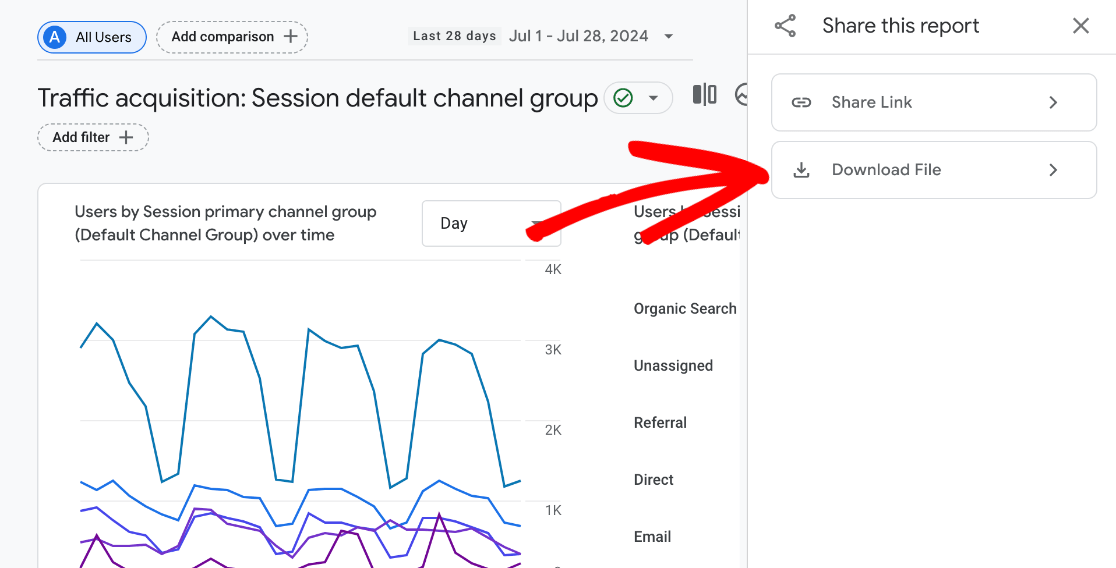
Whether you’re a MonsterInsights user or not, you can also export reports from Google Analytics. To do that, click on the share icon in the upper right corner of any report, then click Download File:
For the best results, add more than 10 rows to your reports before exporting them:

ChatGPT can read data directly from a PDF, so you can download your report that way. You can also use the CSV option but note that you’ll want to remove the top rows that are exported on the report, and the free version of ChatGPT reaches its limit for data analysis quickly with CSV files.
Now, let’s dive into the specific ways you can use ChatGPT to help analyze your Google Analytics data.
Get Your Google Analytics Reports Inside WordPress
MonsterInsights connects your WordPress site to GA4 and brings all your reports into your dashboard — so you spend less time exporting and more time acting on what you find. Plus Charlie Chat lets you skip the export entirely and just ask.
Try MonsterInsights FreeYour First Prompt: Make ChatGPT an Expert
Before you upload any data, it’s best to set the context for your session.
I recommend using the following prompt, which tells ChatGPT to approach your analytics like a marketing expert — not a search engine:
“I’m going to upload Google Analytics data for you to analyze. I want you to act like a digital marketing expert and analyze the data to give me expert-level tips on how to get more traffic, engagement, and more for my website. I’ll give you more details with each report I upload. Make sure to use the data in each report to inform your answers and suggestions. You can also look at my website to provide me with specific suggestions: (URL HERE). Do you understand? Do you need any further instructions?”
8 Ways to Use ChatGPT with Google Analytics
No matter what type of website you have, ChatGPT can help you find insights and new ideas. Here are 8 ways to make it work for you!
1. Get Audience Targeting Recommendations
Your analytics show who’s actually visiting — but you can do a lot more with demographic data than just read it. ChatGPT can identify which audience segments are most engaged and give you specific strategies for reaching more of them.
Audience Reports to Upload to ChatGPT
To get insights on your audience, head to Reports » User attributes » Demographic details:

Now, notice there’s a dropdown menu where you can select different dimensions for your report, like city, language, age, interests, and more:

Using the dropdown, select the dimension you want insights on before exporting the report.
ChatGPT Prompts for Audience Analysis
Understanding your audience is crucial for effective marketing. When you upload an audience report, try prompts like:
- What does this report say about my most engaged users?
- Which audience segments should I target more aggressively?
- Based on this report and what you know about my website, how can I get more traffic?
- How can I tailor my content to better align with the interests of my most engaged users?
These insights help you tailor your marketing strategies to better meet your audience’s needs and interests, making your campaigns more effective.
2. Find New Content Ideas
Your best-performing content is already showing you which topics your audience wants more of — ChatGPT can read those signals and suggest what to create next.
Content Reports to Upload to ChatGPT
The best content reports to upload to ChatGPT are the Pages and screens report and the Landing page report. Both of these reports are in the Engagement section in Google Analytics:

Or, you can find them in your MonsterInsights dashboard under Publishers » Pages Report and Traffic » Landing Page Details:

ChatGPT Prompts for New Content Ideas
ChatGPT can analyze your top-performing content and suggest new topics based on what’s already working. Ask questions like:
- What types of content are driving the most engagement?
- Can you suggest new blog post topics based on my most popular articles?
- Can you suggest new blog post topics based on my most engaging articles?
- Based on this report, are there any blog post topics that I should explore further?
- What types of content might my website be missing?
Use these suggestions to keep your content calendar full of topics that resonate with your audience, driving higher engagement and satisfaction from your audience.
3. Get Landing Page Recommendations
A landing page with high traffic but low engagement is costing you. Upload your landing page report to ChatGPT and it can tell you which pages have the most untapped potential — and what changes to prioritize first.
Landing Page Reports to Upload to ChatGPT
The best Google Analytics reports to use for landing page analysis are the Landing page report and the Landing page report with the source/medium dimension added.
To start, find the report under Engagement » Landing page. You can use this report as-is, or to get deeper insights out of ChatGPT, you can add source/medium to it.
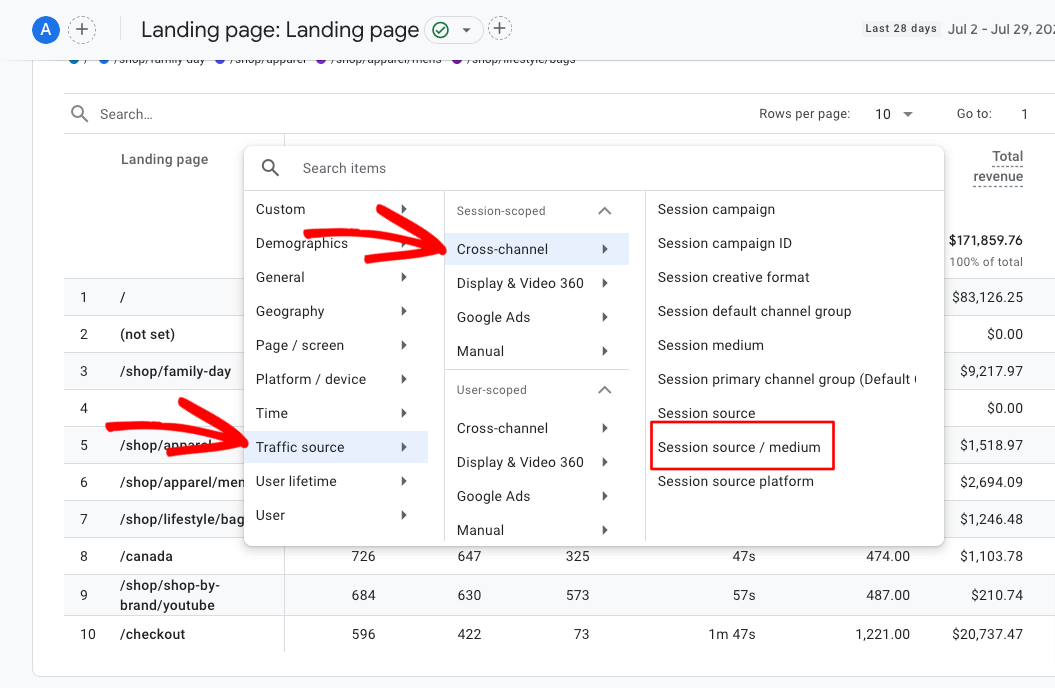
To do that, click the blue plus symbol at the top of the table:

Now in the dropdown, navigate to Traffic source » Session scoped » Cross-channel » Session source/medium:
Since your report will now have multiple rows for each landing page, make sure to expand it to at least 50 rows:
That’s it; you’ve got your landing page report with source/medium added! Go ahead and export it.
ChatGPT Prompts for Landing Page Recommendations
Optimizing your landing pages can significantly boost your engagement and conversion rates so you can grow faster. ChatGPT can help identify which landing pages are performing well and why. Try prompts such as:
- Which landing pages are performing the best? Why?
- How can I improve the engagement on my underperforming landing pages?
- Which landing pages have the most potential for improvement?
- Which landing pages perform the best for my organic traffic? How can I make them even better?
With the insights you gather from ChatGPT about your landing pages, you can make data-driven changes that enhance user experience and drive conversions, ultimately improving your ROI and growing your business!
4. Find Keyword Opportunities
You can see which keywords are bringing people to your site in Search Console — ChatGPT can take that data further and find the highest-leverage opportunities, the ones where a small lift in CTR or content depth moves the needle fast.
Keyword Reports to Upload to ChatGPT
Although you can connect your Search Console with your Google Analytics account, we’re going to grab the reports straight from Search Console for this one. So, log into Search Console and go to Search results:

Then, click on Average CTR and Average position to add those metrics to your report:

Then, go ahead and click the Export button in the upper right to export the report. This one doesn’t have a PDF option, so you’ll need to either upload it to ChatGPT as a CSV or use another program to save it as a PDF.
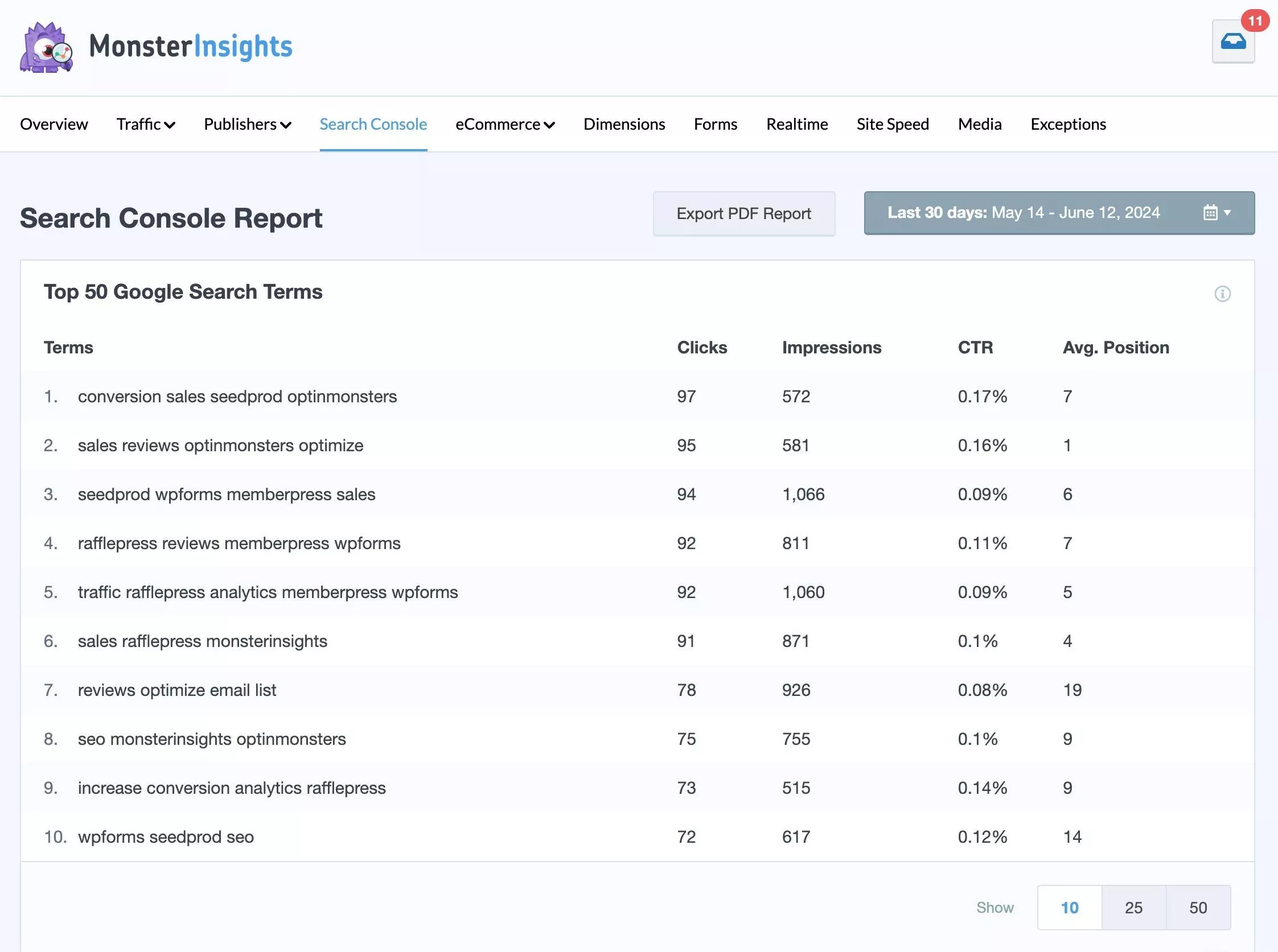
Or, MonsterInsights users can find this data right inside WordPress. Just head to Reports » Search Console:
ChatGPT Prompts for Finding Keyword Opportunities
Keyword strategy is absolutely vital for SEO success, but it can be a really time-consuming process. Let ChatGPT help by analyzing your organic search traffic to find new keyword opportunities and areas to optimize. Try prompts like:
- Which keywords are currently driving the most traffic to my site?
- Can you suggest new keywords to target?
- Which keywords have the most potential to drive more traffic?
- Which long-tail keywords with 4 or more words are doing the best, and which ones should I focus on?
- Show me keywords with high impressions but low CTR and guide me on how to improve my CTR.
These prompts, plus any specific to your website that you can think of, should give you some ideas for what to work on next to give your organic rankings and traffic a boost.
5. Ask for Product Recommendations
If you run an eCommerce store, your GA4 data holds a roadmap to your best products, your weakest pages, and the product ideas your audience is already signaling they want.
Product Reports to Upload to ChatGPT
To ask ChatGPT questions about your products, you’ll want to upload a report on their performance. There are a few different reports you can use for this — let’s take a look.
The Monetization Overview Report: Export this report for general recommendations on top-performing products, product categories, average purchase revenue, and more.

The Ecommerce Purchases Report: This report goes a little more in-depth on each of your products, including views, add-to-carts, purchases, and revenue.

The Landing Pages Report: Yes, your landing pages report can help you here, too, especially if your products have a URL part in common, such as /shop/product-url-here. Then, you can use the search bar in the report to narrow it down to pages that include /shop, then upload that to ChatGPT to ask about how your products are performing as landing pages.

If you’re using MonsterInsights, you can upload the full eCommerce report, which includes top products:

ChatGPT Prompts for Product Recommendations
Looking to expand your product line or improve your SEO on products you already have? ChatGPT can help identify what types of products your audience might be interested in based on their interactions and behaviors. Example prompts include:
- What products are my users showing the most interest in?
- Can you suggest new product ideas for my store (URL here) based on current trends?
- Which products are getting a lot of views but not purchases? How can I improve those pages?
- Are there any products here that are performing really poorly that I should think about getting rid of?
- (If using the landing pages report) Which product pages do you think I should work on optimizing first? In what ways can I optimize them?
Using ChatGPT for product performance is a super helpful way to get ideas that might help increase your sales and make more revenue.
6. Get Social Media Suggestions
Your traffic data shows which social networks are actually driving visitors who stick around — ChatGPT can help you figure out what type of content is working on each platform and how to get more of it.
Social Media Reports to Upload to ChatGPT
There are a couple of different Google Analytics reports you can use to get suggestions from ChatGPT. They both involve a little bit of customization, but it’s worth it for the inspiration you’ll find!
Traffic Acquisition Report (by Channel): You can filter your traffic acquisition report to show traffic only from your social media channels. Head to Acquisition » Traffic Acquisition, then click the blue plus to add a secondary dimension. Add Traffic source » Session source. Then in the search bar, type social. The final result to export should look something like this:

Traffic Acquisition Report (by Content): You can also filter your traffic acquisition report to show which content performs best on social media. Head to Acquisition » Traffic acquisition, then click the blue plus to add a secondary dimension. Add Page/screen » Landing page + query string. Then in the search bar, type social. The final result to export should look something like this:

MonsterInsights users, you can export your social report from Traffic » Social:

ChatGPT Prompts for Social Media Suggestions
Social media is a powerful tool for engagement and brand growth. With ChatGPT, you can find the best content for your social media posts, figure out which platform sends the best traffic to your site, and determine what type of posts work best for each platform. Questions to ask:
- What type of content should I post more of on social media?
- Which type of content works best on each social network based on my engagement data?
- Which landing pages are working the best for my traffic from social media?
- How can I optimize my landing pages to convert more of my social media traffic?
- Which social network is sending the most engaged traffic to my website?
Use these insights to craft a social media strategy that maximizes your reach and engagement and ultimately helps to grow your business.
7. Find Content to Update or Repurpose
Content decay is one of the biggest traffic killers — pages that once ranked well but have slowly lost ground. ChatGPT can scan your pages report and tell you which posts to update or repurpose based on what the data actually shows.
Content Reports to Upload to ChatGPT
For ChatGPT to help you with content updates, we’ll use the Pages and screens report. Find it under Engagement » Pages and screens, and don’t forget to add more rows to the report before you export if you have a lot of content!

MonsterInsights users, you can grab your pages report from Publishers » Pages Report:

ChatGPT Prompts for Finding Content to Update
Keeping your content fresh is essential for maintaining engagement and bringing in traffic. ChatGPT can help identify old content that could benefit from updates or repurposing. Try asking:
- Which blog posts need updating?
- What existing content can I repurpose into new formats? How should I repurpose it?
- What existing content should I use in my next email newsletter?
- Which blog posts are doing okay but could probably use some updates?
- What are the blog posts with the most opportunities to get more traffic?
Regularly refreshing your content ensures it remains relevant and valuable to your audience, helping to retain and attract more visitors.
8. Ask for Campaign Recommendations
If you’re tagging your campaigns with UTM parameters, you’re sitting on some of the most actionable data in your analytics — ChatGPT can turn campaign performance data into a clear picture of what’s working, what to cut, and what to try next.
Campaign Reports to Upload to ChatGPT
To find your campaigns report, head to Acquisition » Traffic acquisition. Then, click the dropdown and select Session campaign:

To really get the best insights from ChatGPT, go ahead and add Session medium to your report by clicking the blue plus sign and adding Traffic source » Session medium. Now your report to export will look something like this:

MonsterInsights users, head to Traffic » Campaigns:

ChatGPT Prompts for Getting Campaign Recommendations
You can definitely use ChatGPT to analyze past campaign performance to inform your future strategies. Example prompts:
- Which marketing campaigns have been the most successful?
- Can you suggest new campaign ideas based on my past campaigns?
- Which campaign mediums have performed the best?
- Based on my campaign data, how should I change my future campaigns?
These insights can help you craft more targeted and effective campaigns, ensuring the best return on your marketing efforts.
Bonus Analytics + ChatGPT Hack: Add Date Comparisons
To get even deeper, more detailed insights from ChatGPT, you can add date comparisons to any of the reports in our list. Then, you can ask questions based on trends in your data.
For example, ask questions like:
- Which landing pages decreased in traffic the most, and what updates can I make to fix them?
- What trends do you see in my data?
- Based on trends, which content is the most important to work on updating?
- Based on trends in my product sales, which products are up and coming? How can I take advantage of this?
By tailoring the hacks in this list to your website’s specific needs, you can maximize the value you get from both Google Analytics and ChatGPT. Remember, the key to using ChatGPT with Google Analytics is to ask the right questions and continually refine your approach based on the insights you gather.
The Bottom Line
Adding date comparisons to any report gives ChatGPT the context it needs to identify trends, not just describe where you are today. It’s worth including in every session once you have the basics down.
FAQs About Using ChatGPT with Google Analytics
Can I use Claude or Gemini instead of ChatGPT for Google Analytics?
Yes — any AI chat tool that supports file uploads and text prompts will work. Claude, Gemini, and Perplexity all handle GA4 reports well, and the prompts in this guide work regardless of which tool you use. ChatGPT’s Advanced Data Analysis feature (available on paid plans) is especially useful for larger CSV files, but you’ll get solid results from any of them.
Is it safe to upload my Google Analytics data to ChatGPT?
Yes, with one settings change. ChatGPT defaults to using your conversations to improve its AI model — which means your data could be used for training. Turn this off before uploading any GA reports: go to Settings → Data Controls → Improve the model for everyone and toggle it off. Once that’s done, your data stays in your session only and isn’t used for training.
Does ChatGPT replace Google Analytics?
No. ChatGPT can’t collect data, run reports, or track what’s happening on your site — it can only analyze data you give it. Google Analytics still does all the tracking. ChatGPT is an analysis layer on top of the data GA4 already collects, not a replacement for it.
Can ChatGPT connect directly to my Google Analytics account?
Not natively. ChatGPT can’t pull reports from your GA4 account on its own — you need to export the data first and upload it. There are third-party GPT plugins that claim GA4 integration, but they vary in reliability and require you to share API access. The export-and-upload method in this guide is the most straightforward approach that doesn’t require any extra setup.
What’s the difference between using ChatGPT with GA and using Charlie Chat in MonsterInsights?
The workflow is different. With ChatGPT, you export a report, upload it, and ask questions in a separate window. With Charlie Chat — built into MonsterInsights, the WordPress analytics plugin — you ask questions directly from your WordPress dashboard with no export required. Charlie Chat is connected to your live GA4 data; ChatGPT works only from the snapshot you uploaded. Charlie Chat is available on all plans including free.
How much Google Analytics data can I upload to ChatGPT at once?
ChatGPT has context limits, so large CSV files can hit those limits quickly — especially on the free plan. For most sites, a 3-month report with 100–200 rows is a good starting point: enough data for meaningful patterns without overloading the tool. PDF exports tend to work more reliably than CSVs for staying within limits. If you’re on ChatGPT Plus, the Advanced Data Analysis feature handles larger datasets better.
That’s it! I hope these use cases help you get more out of both tools. Here are some related guides worth exploring next:
- How to Use Google Analytics and AI to Grow Faster
- Best AI Tools for Digital Marketing: Your Complete Guide
- How to Use AI in Marketing Analytics: Tools, Strategies & Real Examples
- Best ChatGPT WordPress Plugins
- Best Free Keyword Generator Tools to Master SEO
Not using MonsterInsights yet? Get started today!
Follow us on Twitter, Facebook, and YouTube for more Google Analytics tips.