


Product pages get all the SEO attention. Category pages get whatever’s left over — usually nothing.
We’ve seen sites where every category page shared the same default title and an empty description. Meanwhile, the product pages inside them were optimized down to the alt text.
That’s backwards. Category pages sit higher in your site’s structure, target broader keywords, and can pass real authority down to the products underneath them.
This article walks through the on-page, technical, and measurement practices that turn a neglected WooCommerce category page into one of your best-ranking pages. That includes the canonical and duplicate-URL issues that quietly undermine all that other work.
In This Article:
- Why optimize your WooCommerce category pages for SEO?
- How to Track WooCommerce Category SEO
- WooCommerce Category SEO Best Practices to Boost Rankings
- 1. Track Keywords People Use to Find Your Category Pages
- 2. Add Your Target Keyword in the Title and Description
- 3. Keep Your Category URLs Simple and Clean
- 4. Optimize Your Category Page Text for SEO
- 5. Use Alt Text for Product Images
- 6. Find Backlink Opportunities Using Top Conversion Sources
- 7. Highlight Your Most Popular Products
- 8. Avoid Duplicating Tags and Categories
- 9. Fix Canonicalization and Duplicate URL Issues
- 10. Add Breadcrumb Navigation and Schema Markup for Category Pages
- 11. Track Category Page Performance in MonsterInsights
- FAQs About WooCommerce Category SEO
Why optimize your WooCommerce category pages for SEO?
Category pages are critical navigation points for your WooCommerce store, helping both users and search engines understand your site’s structure and navigate it without issue.
When properly optimized, category pages have several key benefits for your organic visibility:
- They can rank for competitive, broad keywords that individual product pages might struggle to target
- They capture traffic from shoppers using general search terms rather than specific product names
- They prevent your individual product pages from competing with each other for the same keywords
- They improve your user experience by helping customers not only find products they want on your site, but also “window shop” by browsing by category
According to SEO best practices, category pages often have higher authority than individual product pages. That’s because they typically sit higher in your site hierarchy and target broader keywords — which makes them strong candidates for ranking on competitive terms.
How to Track WooCommerce Category SEO
Before starting in on some optimization tactics, you need to understand how your search traffic affects your sales and revenue. The most effective way to do this is by enabling eCommerce tracking in Google Analytics.
MonsterInsights, the WordPress analytics plugin, makes this easy — it lets you set up WooCommerce tracking without touching a line of code.

To get started, sign up for MonsterInsights at the Pro level, then install and set up the plugin.
From there, install the MonsterInsights eCommerce addon under Insights » Addons to enable WooCommerce tracking.
Once set up, MonsterInsights provides detailed data about your customers’ shopping behavior directly in your WordPress dashboard. It also sets up all the necessary eCommerce events in Google Analytics 4, so you can access even more data there.
You can track important metrics like:
- Store-wide conversion rate and average order value
- Revenue by individual product
- Cart and checkout abandonment rates
- New vs. returning customers
- And more!
With all of this data right at your fingertips, you can make informed decisions about which category pages need optimization and measure the impact of your SEO efforts.
WooCommerce Category SEO Best Practices to Boost Rankings
These practices start with the on-page basics and end with the technical and measurement checks most category pages miss entirely.
1. Track Keywords People Use to Find Your Category Pages
When you set out to optimize your category pages, the first step is understanding which search terms are already driving traffic to your site. By connecting Google Analytics with Google Search Console, you can gain valuable insights about these keywords.
MonsterInsights also simplifies this process by displaying your top 50 search terms directly in your WordPress dashboard in the Search Console report. This report shows:
- Clicks
- Impressions
- Click-through rate (CTR)
- Average position

Use this data strategically to:
- Identify keywords ranking in the top 10 positions and further optimize those category pages
- Find “low-hanging fruit” keywords (positions 11-20) that are close to first-page rankings
- Discover new keyword opportunities related to your existing high-performing terms
As you analyze this data, look for patterns in the search terms visitors use to find your category pages. These insights will guide your optimization efforts for other pages.
For more on using Search Console to raise your rankings, check out our guide on using Google Search Console for SEO.
2. Add Your Target Keyword in the Title and Description
Each WooCommerce category has its own page where you can add a meta title and meta description. Strategic keyword placement in these two elements is crucial for the success of your SEO efforts! Note: Google often rewrites your meta descriptions to match what the searcher types in, but it’s still important to craft great meta descriptions.
When shoppers scan search results, they’re looking for the exact terms they searched for. Including your target keywords in your category titles and descriptions increases the likelihood of clicks.
For example, if you sell kitchen appliances, a great category title might be “Premium Kitchen Appliances – Free Shipping” rather than just “Appliances.”

Follow these best practices:
- Perform thorough keyword research to identify the most valuable search terms for each category
- Place your primary keyword near the beginning of your title
- Write compelling descriptions that naturally incorporate secondary keywords
- Consider the search intent behind each keyword (informational, navigational, transactional)
Search intent plays a big role in keyword selection. If someone searches for “barbecue grills,” they likely have purchasing intent. Make sure your title and description match this intent by highlighting your product selection and any special offers.
3. Keep Your Category URLs Simple and Clean
URL structure is an often overlooked aspect of category page optimization. Clean, descriptive URLs help both users and search engines understand what your page is about.
Avoid creative or complex naming conventions that might confuse visitors. Instead, use clear, keyword-rich URLs that accurately describe your category.
For example:
- Good URL:
https://www.example.com/product-category/embellished-tshirts - Poor URL:
https://www.example.com/product-category/cat-56-collection-2
When setting up your WooCommerce store, remember that “product-category” is the default slug for categories. You can customize this URL structure when first launching your store, but it becomes more complicated to change later without affecting SEO.
I’d keep your URLs as short as possible while still being descriptive — shorter URLs are also easier to share, remember, and troubleshoot if something breaks down the line.
4. Optimize Your Category Page Text for SEO
Adding relevant, keyword-rich text to your category pages serves multiple purposes:
- It helps search engines understand what your category is about
- It provides context for shoppers browsing your products
- It creates opportunities to rank for additional keywords
Many successful eCommerce stores include detailed content on their category pages. For example, Best Buy adds comprehensive buying guides to their television category pages, helping shoppers make informed decisions while incorporating valuable keywords.

When creating category page text:
- Include a brief introduction explaining what types of products are in the category
- Add helpful buying guides or product comparison information
- Incorporate your target keywords naturally throughout the text
- Use subheadings to break up text and improve readability
This additional content not only helps with SEO but also may also improve user experience by providing valuable information to your customers as they shop.
5. Use Alt Text for Product Images
A category page full of unlabeled product images is invisible to image search — and image search sends real shopping traffic you’re not currently capturing.
Alt text (alternative text) describes what’s in an image so search engines can understand its content and rank it in image search results.
When creating alt text for your category page images:
- Be descriptive and specific about what the image shows
- Include your target keyword when relevant, but avoid keyword stuffing
- Keep it concise (typically under 125 characters)
- Consider the context of the image on the page
For example, instead of using generic alt text like “t-shirt,” be more specific: “men’s blue cotton embellished t-shirt front view.”
You can add alt text when uploading images to your WooCommerce store or edit existing alt text from the WordPress media library.
6. Find Backlink Opportunities Using Top Conversion Sources
Some of the sites already linking to your store are sending buyers, not just clicks — those are exactly the backlink sources worth building on first.
MonsterInsights’ eCommerce report makes this easy by showing your top conversion sources – search engines and websites that not only send traffic, but the ones who make purchases.

With this data, you can:
- Reach out to websites similar to your top converters for potential collaborations
- Look for guest posting opportunities on related blogs
- Identify industry directories where you might be missing
- Create shareable content that appeals to your highest-converting sources
Focus your backlink building efforts on quality rather than quantity. A few links from authoritative, relevant websites will have more impact than dozens of low-quality links.
7. Highlight Your Most Popular Products
If your categories contain a lot of products, showcasing your bestsellers or most popular items can significantly improve both SEO and conversion rates. Put them at the top or side of the page for the biggest impact.
This strategy works because:
- It passes more “link juice” to your most important products
- It improves user experience by highlighting products customers are most likely to want
- It reduces the chance of visitors leaving without finding something interesting
MonsterInsights makes implementing this strategy simple with its Popular Products feature, which can display your most popular products anywhere on your WooCommerce store. You can customize:
- Layout style (grid or list)
- Number of products to display
- Title, price, and rating appearance
- Which products or categories to include or exclude
This feature automatically tracks which products get the most views and purchases, ensuring your category pages always showcase your best performers.
8. Avoid Duplicating Tags and Categories
The final on-page best practice for WooCommerce category SEO is avoiding duplicate taxonomy issues, which can cause confusion for search engines and dilute your SEO efforts.
When creating tags and categories:
- Don’t use the same name for both a tag and a category
- Be consistent with singular vs. plural forms (choose either “t-shirt” or “t-shirts” and stick with it)
- Avoid creating multiple categories that target essentially the same keyword
- Use a hierarchical structure with parent and child categories where appropriate
This consistent approach helps search engines understand your site structure and prevents your pages from competing with each other for the same keywords.
9. Fix Canonicalization and Duplicate URL Issues
Sorting, filtering, and pagination can quietly multiply a single category into a dozen near-identical URLs — and that confuses search engines about which one to rank.
WooCommerce generates a new URL for nearly every way a shopper can view a category. It might be sorted by price, filtered by size or color, or paged past the first screen of results. Each of those variants technically counts as a separate page.
A few of the most common duplicate URL patterns to watch for:
- Sort order parameters, like
?orderby=priceor?orderby=rating - Attribute or layered-nav filters, like
?filter_size=largeor?filter_color=blue - Pagination beyond the first page, like
/page/2/
None of these are separate pages in any meaningful sense. They’re the same category, viewed a different way.
The fix is a canonical tag — a small piece of code that tells Google which version is the one to index and rank. It matters most when several URLs show overlapping content. A good SEO plugin generates these automatically for your category, sort, and filter URLs, so you don’t need to add them by hand.
That said, a canonical tag solves the indexing confusion — it won’t stop the extra URLs from being crawled in the first place. If you’re seeing an unusual number of thin or near-duplicate category URLs in Search Console’s coverage reports, it’s worth checking your plugin’s canonical settings directly rather than assuming they’re already handled.
10. Add Breadcrumb Navigation and Schema Markup for Category Pages
Breadcrumbs do double duty on a category page. They help shoppers backtrack to a parent category in one click, and they hand search engines a readable map of how your catalog is organized.
That map can also show up in the search results themselves. Breadcrumb schema is structured data that describes your site’s navigation path. When it’s present, Google will sometimes display the breadcrumb trail directly under your listing instead of just the raw URL.
All in One SEO (AIOSEO), the WordPress SEO plugin, includes a one-click Breadcrumbs feature that adds this navigation and generates the schema markup automatically, with no manual coding required.

For the full setup walkthrough, see our guide on enabling breadcrumbs in WordPress.
Breadcrumbs handle navigation. Your category page’s title and description are a separate piece, and one that’s easy to leave on autopilot across dozens of categories.
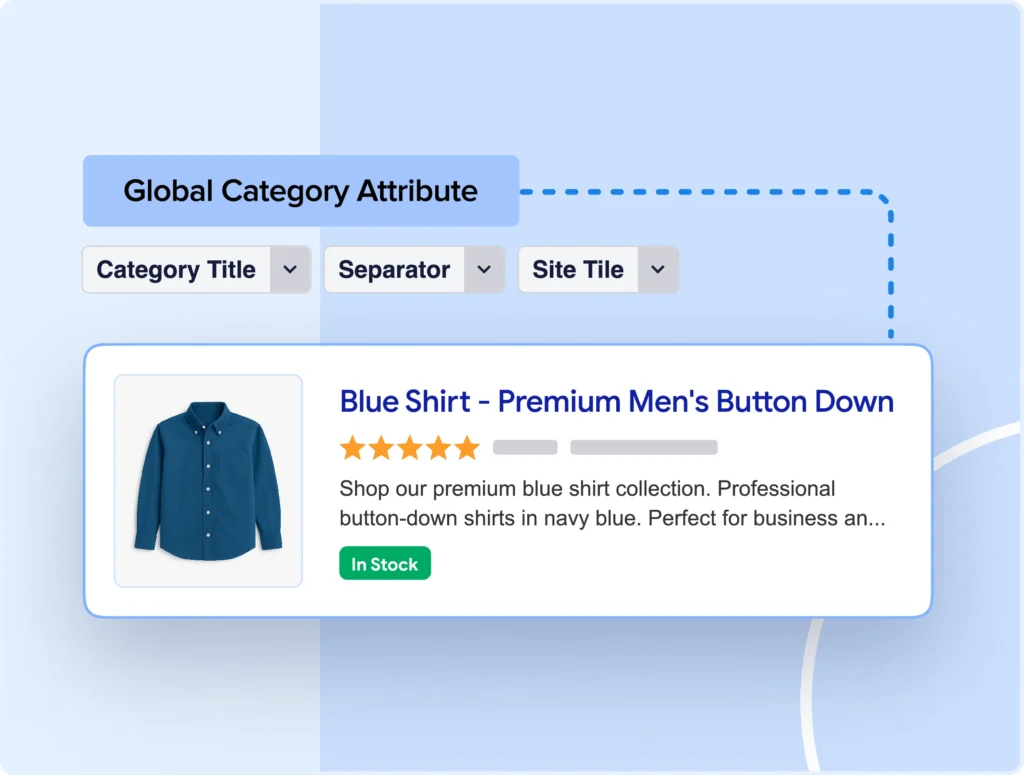
AIOSEO’s WooCommerce SEO taxonomy optimization tools let you set title and description formats for all your category and attribute pages at once. You can still override individual ones where a category needs something more specific.
If you want the fuller picture of how structured data affects rankings, see our guide on schema markup in WordPress.
11. Track Category Page Performance in MonsterInsights
None of the practices above matter if you can’t tell whether they’re working. A category page can rank higher and still not sell more. The only way to know which is happening is to look at the traffic and the sales numbers side by side.
MonsterInsights splits this into two places, and you’ll want to check both.
In Insights » Reports » Traffic, find your category page in the Landing Page table. It shows Sessions, Engagement, Revenue, Purchases, and Conversion Rate for that exact URL — so you can see whether the traffic your SEO work brought in actually turned into sales, not just page views.

See our guide on Google Analytics 4 landing page reporting for a full walkthrough of what each column means.
For a product-level view, cross-reference the eCommerce Report’s Top Products list (available on the Pro plan and above) to see which specific products in that category are driving the revenue you just saw.
MonsterInsights doesn’t roll revenue up by category directly — the Landing Page table gives you revenue by URL, and the eCommerce Report gives you revenue by product. Used together, they tell a clear story: a category page with climbing Landing Page revenue, and its products climbing in Top Products too, is about as clear a sign as you’ll get that the SEO work is paying off.
For more on reading that table, check out how to track your top-selling products in Google Analytics.
See Which Category Pages Are Actually Selling
MonsterInsights Pro connects your WooCommerce store to Google Analytics in one click, so you can match your SEO wins to real revenue — not just rankings.
Get MonsterInsights ProFAQs About WooCommerce Category SEO
How long does it take to see results from WooCommerce category SEO optimization?
SEO is a long-term strategy, but you can expect to see initial improvements within 2-3 months after implementing category page optimizations. More competitive keywords may take 6+ months to show significant ranking improvements. Use Google Analytics (and/or MonsterInsights) to track progress and make ongoing adjustments.
Should I optimize category pages or product pages first?
I recommend starting with category pages, as they target broader keywords that often have higher search volume. Well-optimized category pages can also pass SEO value to your product pages. Once your category pages are optimized, move on to your best-selling or highest-margin products.
Can I use the same description for similar category pages?
No, each category page should have unique content. Duplicate content can harm your SEO efforts. Even for similar categories, create distinct descriptions that highlight the unique aspects of each product collection and target different keyword variations.
How do I handle seasonal or temporary product categories in WooCommerce?
Rather than deleting seasonal categories (which can create broken links), consider:
- Updating the page with a message about when products will return
- Redirecting the page to a relevant permanent category
- Adding a selection of year-round products that complement the seasonal items
- Using the page to capture email sign-ups for notifications when seasonal products return
Do sorting and filtering options create duplicate category URLs?
Yes. Every sort order and filter combination WooCommerce generates technically creates a new URL, even though the content is nearly identical to the main category page. Canonical tags, usually added automatically by your SEO plugin, tell search engines which version to index — so this isn’t something you need to manage by hand for every combination.
Canonical tags and breadcrumb schema are the two items on this list that are easiest to leave unchecked — worth auditing first if your category pages have been running on autopilot. If you liked this article, check out the following beginner-friendly guides:
- WooCommerce SEO Tips to Increase Search Rankings Today
- How to Add FAQ and FAQ Schema in WordPress
- WooCommerce Conversion Tracking: Complete Guide
- Top eCommerce Metrics & KPIs to Track in Google Analytics 4
- How to Find Your Average Order Value in Google Analytics
Follow us on Twitter, Facebook, and YouTube for more Google Analytics tips.