


Without a correctly installed Google Analytics Measurement ID, your site is collecting exactly zero data — and most site owners don’t find out for weeks.
We’ve watched small business owners check their analytics a month after launching, expecting to see traffic, and find a completely empty dashboard. The cause is almost always the same: a Measurement ID that was copied wrong, pasted in the wrong place, or never installed at all.
The good news? Once you understand what your Measurement ID actually is and how it connects your site to GA4, the fix is simple. This guide walks you through finding it, installing it, and confirming it’s working — in plain English, with no code required.
In This Article:
- What Is a Google Analytics Measurement ID?
- What Is the Google Analytics Measurement ID Used For?
- Where to Find Your Google Analytics Measurement ID
- How to Install Your Google Analytics Measurement ID in WordPress
- How to Verify Your Google Analytics Measurement ID Is Working
- Common Google Analytics Measurement ID Problems (and How to Fix Them)
- FAQs About Google Analytics Measurement IDs
Before You Start
Your Measurement ID (formatted like G-XXXXXXXXXX) is the unique code that links your website to GA4. Without it installed correctly, no visitor data is recorded — you see blank reports. Finding it takes five clicks inside your Google Analytics account, and installing it on WordPress takes a few minutes with the right plugin.
What Is a Google Analytics Measurement ID?
A Google Analytics Measurement ID is a short string of characters — formatted like G-XXXXXXXXXX — that uniquely identifies your website inside Google Analytics 4 (GA4). It’s how Google knows which property the incoming data belongs to.
Think of it like a return address on an envelope. Every pageview, click, and event on your site gets stamped with your Measurement ID before it’s sent to Google’s servers. Without that stamp, the data has nowhere to go.
When it’s installed correctly, the Measurement ID (along with your full Google tag) is what allows Google Analytics to “see” and collect your traffic data. If it’s missing or installed incorrectly, your Google Analytics reports will stay empty — no matter how much traffic your site is getting.
Here’s what a Measurement ID looks like inside the full Google tag snippet:

The highlighted G-XXXXXXXXXX string is the Measurement ID. Everything around it is the full Google tag — the JavaScript that actually sends data from your site to GA4.
Measurement ID vs. Tracking ID: What Changed With GA4
If you set up Google Analytics before 2023, you probably remember the old Tracking ID — formatted like UA-XXXXXXX-X (that “UA” stood for Universal Analytics). When Google released GA4 and sunset Universal Analytics, they replaced the Tracking ID with the Measurement ID.
The two terms mean essentially the same thing — a unique identifier that links your site to an analytics property. The format just changed:
- Old (Universal Analytics): UA-XXXXXXX-X — called a Tracking ID
- New (GA4): G-XXXXXXXXXX — called a Measurement ID
Any site running Google Analytics today uses a Measurement ID. If you’re still searching for a UA-prefixed Tracking ID, that property no longer collects data — Google stopped processing it in July 2023. You’ll need to create a new GA4 property to get a valid Measurement ID.
GA4’s Property Structure: Why Each Data Stream Has Its Own ID
One thing that trips up a lot of site owners: GA4 organizes everything across three levels — account → property → data stream — and your Measurement ID lives at the data stream level, not the property level.
Here’s what each level means:
- Account: The top-level container — typically your company or brand.
- Property: Your analytics workspace for a specific business — where your reports live. Each property has a numeric Property ID (e.g., 123456789) that looks like an ID but isn’t your Measurement ID.
- Data stream: A source of data feeding into that property. A website is one stream. An iOS app is another. An Android app is another.
Each data stream gets its own unique Measurement ID (G-XXXXXXXXXX). If you run a website and a mobile app under the same GA4 property, they each have different Measurement IDs — even though they report into the same property and the same set of reports.
This is why you find your Measurement ID by navigating to Admin → Data Streams in GA4 — not at the property level.
It’s also why “I have multiple IDs, which one do I use?” is such a common question. If you’re connecting a WordPress site to GA4, you want the ID from your Web data stream specifically.
What Is the Google Analytics Measurement ID Used For?
The Measurement ID isn’t just a label — it’s the key that makes every analytics, advertising, and marketing integration on your site possible. Here’s where you’ll actually run into it.
Connecting Your Site to Google Analytics 4
This is the primary use. The Measurement ID gets embedded inside your Google tag — the JavaScript snippet that sends pageviews, events, and user data to GA4. Without it, no data is recorded. With it installed correctly, every page on your site starts feeding GA4 automatically.
Powering Google Ads and Google Tag Manager
The same Google tag that carries your Measurement ID can also be used to set up Google Ads conversion tracking, Google Tag Manager, and Campaign Manager 360. One tag, one Measurement ID, multiple Google tools — that’s the architecture GA4 was designed around.
Connecting Third-Party Marketing Tools
Plenty of marketing and analytics tools require your Measurement ID to pull data from your GA4 property. Email platforms, heatmap tools, SEO software, and attribution platforms all use it as the reference point for your site.
Troubleshooting Tracking Issues
When something breaks — empty reports, missing events, data from the wrong property — your Measurement ID is the first diagnostic anchor. You can feed it into Google Tag Assistant, inspect your site’s source code, or check your plugin settings to pinpoint exactly where the chain snapped.
Where to Find Your Google Analytics Measurement ID
Your Measurement ID lives inside the Admin panel of your Google Analytics account, under Data Streams. Here’s how to grab it in five quick steps.
Step 1: Sign in to your Google Analytics account.

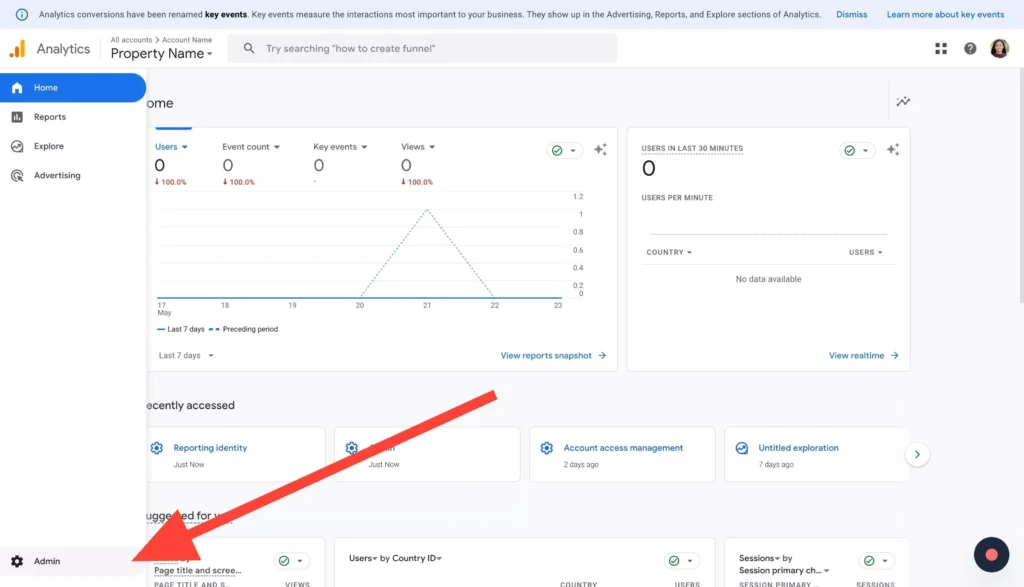
Step 2: Click on Admin in the bottom-left corner of the screen.
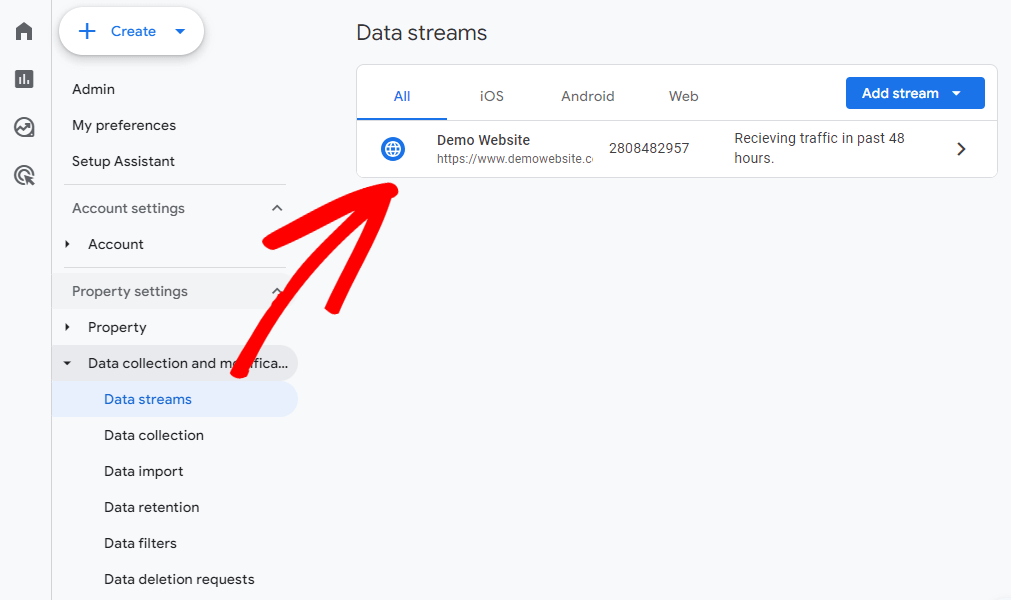
Step 3: Under “Data collection and modification,” click on Data Streams.

Step 4: Select your web stream. If you only have one, it’ll be the only option in the list.
Step 5: Your Measurement ID appears at the top-right of the stream detail panel, labeled clearly as “Measurement ID.”
Copy the full ID (including the “G-” prefix). That’s the string you’ll need to install your tracking code — or, if you’re using a plugin, the ID your plugin will automatically pull during connection.
One shortcut worth knowing: if you’re running WordPress, you don’t actually need to copy and paste this ID at all.
MonsterInsights connects your GA4 property to WordPress directly, so the Measurement ID is handled automatically in the background — no code required. I’ll show you how in the next section.
How to Install Your Google Analytics Measurement ID in WordPress
This is where most beginners get stuck. You found your Measurement ID — now what? The traditional approach involves copying the Google tag, editing your theme’s header.php file, and hoping you don’t break your site. If that sounds intimidating, you’re not alone.
There’s also a big catch with the manual method: every time you update your WordPress theme, the header file gets overwritten — and your tracking code disappears with it. We’ve seen sites lose weeks of data this way because the owner had no idea the update wiped out their install.
The safer, faster option is to use a plugin that handles the connection for you. MonsterInsights is the best Google Analytics plugin for WordPress, and the setup is built specifically for non-technical users. Here’s the full walkthrough.
Step 1: Install the MonsterInsights Plugin
From your WordPress dashboard, go to Plugins → Add New and search for “MonsterInsights.” Click Install Now on the MonsterInsights listing.

The Lite version works for connecting GA4 and seeing core reports.
If you want advanced features like eCommerce tracking or form conversions, you’ll want a paid plan — but Lite is enough to get your Measurement ID installed correctly.
Step 2: Activate the Plugin
After the install finishes, click Activate. WordPress will enable the plugin and add a new “Insights” menu item to your dashboard sidebar.

Once activated, MonsterInsights will automatically redirect you to a welcome screen — that’s where the setup wizard lives.
Step 3: Launch the Setup Wizard
Click the Launch the Wizard button on the welcome screen. The wizard walks you through connecting MonsterInsights to your Google Analytics account in a handful of clicks.

Don’t overthink the options — the wizard picks sensible defaults for most site types (business, publisher, or eCommerce), and you can change anything later from Settings.
Step 4: Authenticate With Google and Select Your GA4 Property
The wizard will ask you to sign in to the Google account where your GA4 property lives.
Click Connect MonsterInsights, choose the correct Google account in the popup, and click Allow on the permissions screen — this is standard OAuth, the same kind of “Sign in with Google” permission you’ve likely approved on other tools.
Once authenticated, MonsterInsights shows you a dropdown listing every GA4 property connected to your Google account. Select the one that matches your WordPress site.

This is the step where your Measurement ID gets installed — you just don’t see it. MonsterInsights reads the Measurement ID from the property you picked and automatically wires it into your site.
Click Complete Connection on the next screen to finish. Your Measurement ID is now active on every page of your WordPress site, and GA4 will start receiving data within a few minutes.
Skip the Measurement ID Hunt Entirely
MonsterInsights connects your WordPress site to GA4 in under five minutes — no code, no header edits, no manual copying of Measurement IDs. You get your most important analytics right inside your WordPress dashboard, exactly where you already work.
Get MonsterInsights TodayHow to Verify Your Google Analytics Measurement ID Is Working
Installing the Measurement ID is only half the job. The other half is confirming that data is actually flowing — because a silently broken install looks identical to a working one until you check the reports a month later and find nothing.
There are four ways I’d recommend checking that Google Analytics is working, in order from fastest to most thorough.
Option 1: Check the MonsterInsights Realtime Analytics Dashboard
If you installed your Measurement ID through MonsterInsights, the fastest verification is built in. Open your WordPress dashboard, go to Insights → Reports → Realtime, and you’ll see live activity — active users, top pages, and traffic sources updating in real time.
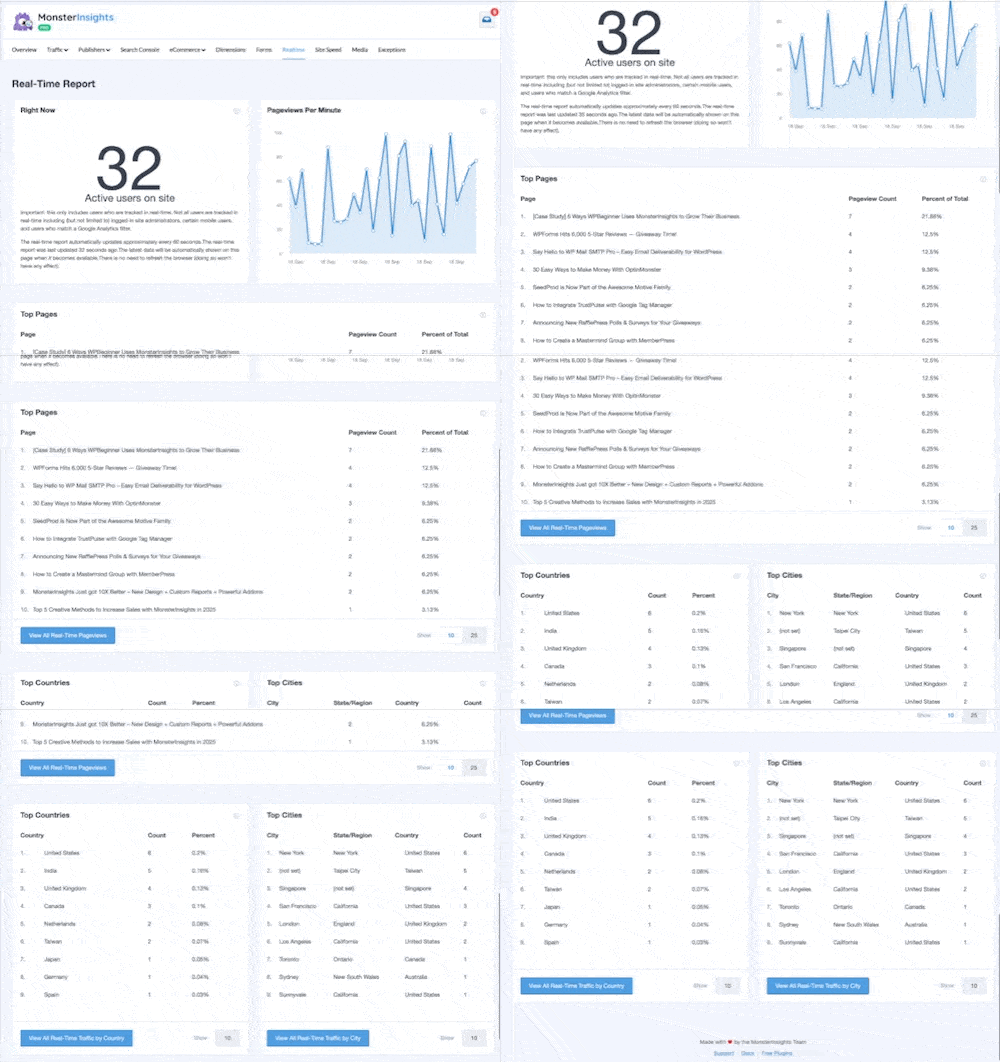
Open your site in a separate browser tab. Within 10–30 seconds, you should see yourself show up as an active user. If you do, your Measurement ID is installed and tracking correctly.
If the dashboard stays at zero, something’s wrong — jump down to the Common Problems section.
Option 2: Check the GA4 Realtime Report
If you installed your Measurement ID manually (without MonsterInsights) or want to double-check directly in Google Analytics, log in to GA4 and open Reports → Realtime.
You’ll see the same kind of live activity — users in the last 30 minutes, events per second, top pages.

For a deeper dive, our guide to using Realtime reports in GA4 walks through every metric on the screen.
Option 3: Check GA4 DebugView
DebugView is the most detailed verification tool GA4 offers — it shows individual events streaming in from your site in near real time, with the full parameter data attached to each one. Where the Realtime report shows you that traffic is flowing, DebugView shows you exactly what is being tracked.
To use it, first activate debug mode by opening Google Tag Assistant, entering your site URL, and clicking Connect. Once Tag Assistant is running in preview mode, your browser sends a debug signal to GA4 automatically.
Then in GA4, go to Admin → DebugView. Navigate around your site and watch events populate in real time — page_view, scroll, click, and any custom events your setup is tracking.
If events appear in DebugView, your Measurement ID is installed correctly and data is flowing. If nothing shows up after 30–60 seconds of active browsing, there’s a tracking problem to diagnose — the most common causes are covered in the section below.
Option 4: Run Google Tag Assistant
For the most thorough check — especially if you suspect a problem — use Google Tag Assistant. It’s a free tool from Google that inspects every tracking tag firing on a page and confirms whether your Measurement ID is being detected correctly.
Enter your site URL, click Connect, and Tag Assistant will load your site and report back on every Google tag it finds. Look for a green checkmark next to your G-XXXXXXXXXX ID. If you see more than one GA4 tag, you’ve got a duplicate tracking issue — also covered in Common Problems below.
If you confirmed your Measurement ID through MonsterInsights, you can also double-check it in the plugin’s settings. Go to Insights → Settings and scroll to the Website Profile panel — the connected GA4 property and its Measurement ID are displayed there.

Seeing the right property name and ID here is your final confirmation that the connection is solid.
Common Google Analytics Measurement ID Problems (and How to Fix Them)
Even with a plugin handling the install, a few predictable issues can block your Measurement ID from tracking correctly. Here are the five we see most often and what to do about each.
Using the Wrong Measurement ID
If you’ve created multiple GA4 properties or data streams — say, one for a staging site and one for production — it’s easy to install the wrong ID on the wrong site. Data will still flow, but it’ll flow into a property you don’t check, while the correct property stays empty.
Take note of the property name attached to each Measurement ID before you install. In GA4, the property name is visible at the top of the Admin panel — if it says “Test Property” and your site isn’t a test site, you’ve grabbed the wrong one.
If you’re using MonsterInsights, the property dropdown in the setup wizard shows the full property name, so you can confirm you’re picking the right one before you save. And if you ever need to switch, you can reconnect to a different property at any time from Insights → Settings.
Incorrect Implementation of the Tracking Code
The Google tag must load inside the <head> section of every page you want to track. If it’s placed in the footer, or only on the homepage, or inside a WordPress page builder that strips scripts, it won’t fire correctly.
Landing pages are the most common blind spot. Many landing page builders use a different template than your main site theme, which means the tracking code from header.php never loads on those pages. Check each landing page individually with Tag Assistant.
MonsterInsights sidesteps this problem entirely by hooking into WordPress at a plugin level, not a theme level. The Measurement ID fires on every page WordPress renders — including landing pages, archives, custom post types, and pages you haven’t even published yet.
Duplicate Tracking Codes
Duplicate tracking is the silent killer of accurate data. If you installed your Google tag manually, then switched to a plugin without removing the manual code, GA4 now receives every pageview twice — inflating your numbers and completely breaking your bounce rate.
The same thing happens when people set up GA4 tracking through both Google Tag Manager and a WordPress plugin. GTM fires the tag, the plugin fires it again, and your reports show double the traffic you actually have.
Google Tag Assistant will flag duplicates with a yellow or red warning icon — it’ll literally tell you “multiple tags detected.” Our docs on finding and removing duplicate tracking codes walk through the full fix.
Ad Blockers Blocking Your Measurement ID
Some visitors use browser extensions that block Google Analytics from loading — uBlock Origin, Ghostery, and Brave’s built-in shield are the most common. For those visitors, your Measurement ID never fires, and they’re invisible in your reports.
You can’t control this from your end, but it’s worth knowing that your real traffic is usually a bit higher than what GA4 reports — depending on your audience. Tech-savvy audiences block analytics at higher rates than mainstream audiences.
If you’re seeing wildly inconsistent numbers between GA4 and your hosting provider’s server logs, ad blockers are usually the explanation. Our troubleshooting guide to common Google Analytics errors and how to fix them covers the full checklist.
Caching Plugin Serving Stale Pages Without Your Tracking Code
Caching plugins like WP Rocket, W3 Total Cache, and LiteSpeed Cache work by saving a static HTML snapshot of each page and serving that snapshot to visitors instead of generating the page fresh on every load. It’s great for speed — but it means if you install or change your tracking code after those pages were cached, some visitors will see the old cached version that doesn’t include your Measurement ID.
The result: GA4 shows data for some page views but not others, or data seems to stop and start inconsistently depending on how often your cache refreshes. This one is easy to miss because the site looks completely normal — just the tracking tag is silently missing from cached pages.
The fix is straightforward: after installing or updating your tracking setup, clear your site’s full cache. In WP Rocket, that’s WP Rocket → Clear Cache. In W3 Total Cache, go to Performance → Purge All Caches.
MonsterInsights automatically hooks into the page rendering process at the PHP level rather than HTML level, which largely sidesteps this problem — but if you’re also running any page-level HTML caching, a cache clear after setup is always worth doing.
FAQs About Google Analytics Measurement IDs
Is the Google Analytics Measurement ID the same as the Tracking ID?
Yes, they refer to the same concept — a unique identifier that links your site to a Google Analytics property. Google changed the name from Tracking ID to Measurement ID when they released GA4. The format also changed from UA-XXXXXXX-X (Universal Analytics) to G-XXXXXXXXXX (GA4).
Can I use the same Measurement ID on multiple websites?
Technically yes, but it’s not recommended for most site owners. Using one Measurement ID across multiple sites combines all the data into a single property, making it almost impossible to analyze individual site performance. Create a separate GA4 property for each website, or use cross-domain tracking if the sites are part of the same brand.
How long does it take for GA4 to start collecting data after installing my Measurement ID?
Realtime data appears within 30 seconds to a few minutes. Standard reports (like Pages, Traffic Acquisition, and Engagement) take 24–48 hours to fully populate because GA4 processes the data in daily batches. If you see activity in Realtime but nothing in standard reports after 48 hours, something’s wrong with your install.
What’s the difference between a Measurement ID and a Google tag?
The Google tag is the full JavaScript snippet that collects and sends data to GA4. The Measurement ID is a single string inside that snippet — the part that tells Google which property to send the data to. Think of the tag as the envelope and the Measurement ID as the address on it.
How often should I check that my Measurement ID is still working?
Verify your install at least once a quarter, and always after a major website change — theme switch, migration, plugin update, or redesign. The Realtime report takes less than a minute to check. MonsterInsights users can spot issues even faster because the Realtime Analytics Dashboard is right inside WordPress.
What is a Google Analytics code snippet?
A Google Analytics code snippet is a short piece of JavaScript that loads on your website and sends visitor data to GA4. It contains your Measurement ID and a small bootstrap script. When a page loads, the snippet fires, the Measurement ID identifies your property, and GA4 starts recording the visit.
Can I manually enter a Measurement ID in MonsterInsights instead of connecting with Google?
Yes. MonsterInsights includes a manual entry option for users who can’t complete the OAuth connection — for example, if a Google account has restricted access. You’ll find it under Insights → Settings in the Manual UA Code field, where you can paste your G-XXXXXXXXXX Measurement ID directly. The standard OAuth setup is still recommended because it unlocks the full reporting inside WordPress.
I hope this article helped you find, install, and verify your Google Analytics Measurement ID. These guides cover what to do next:
- How to Set Up Google Analytics: Step-by-Step
- Beginner’s Guide to Google Analytics: How Does It Work?
- How to Add Google Analytics 4 to WordPress (Best Way)
- How to Add a Website (Property) to Google Analytics
- Google Analytics Glossary: New GA4 Terms to Know
- Google Analytics Not Working: Common Errors and How to Fix Them
Follow us on Twitter, Facebook, and YouTube for more Google Analytics tips.