


Have you ever looked at your Google Analytics reports and wondered whether the numbers are accurate?
A tracking tag can look fine and still miss visits, count some of them twice, or quietly stop sending data. When that happens, every report built on that data is off, and the problem can go unnoticed until you need the numbers.
We’ve helped plenty of WordPress site owners track down problems like these, and the checks themselves only take a few minutes.
In this guide, we’ll show you how to check if Google Analytics is working in four ways, including Google’s free Tag Assistant checker. We’ll also cover one setting that keeps your own visits out of the data.
In This Article:
- 1. Check if Google Analytics Is Receiving Data
- 2. Check Web Traffic in Realtime Reports
- 3. Use Google Tag Assistant (a Free Google Analytics Checker)
- 4. View the Analytics Tracking Code in Your Source Code
- How to Keep Your Own Visits Out of Google Analytics
- FAQs About Checking if Google Analytics Is Working
1. Check if Google Analytics Is Receiving Data
Your data stream is the connection between your website and Google Analytics, so its status is the quickest sign of whether any data is arriving at all. If the stream isn’t receiving anything, none of your reports can fill in, no matter how long you wait.
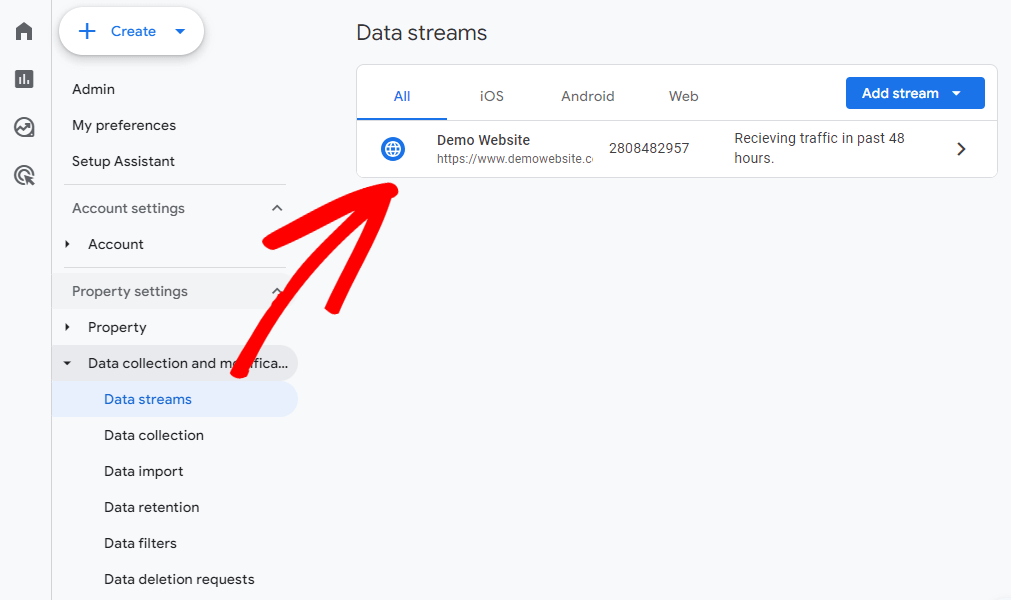
To check your data stream, click Admin (the gear icon in the bottom-left corner of Google Analytics). Then, under Data collection and modification, click Data streams.

You’ll see a list of your data streams, with a short traffic status next to each one. Click your website’s data stream to open its details.
Right at the top of the Web stream details page, a status message tells you whether data collection has been active in the past 48 hours:
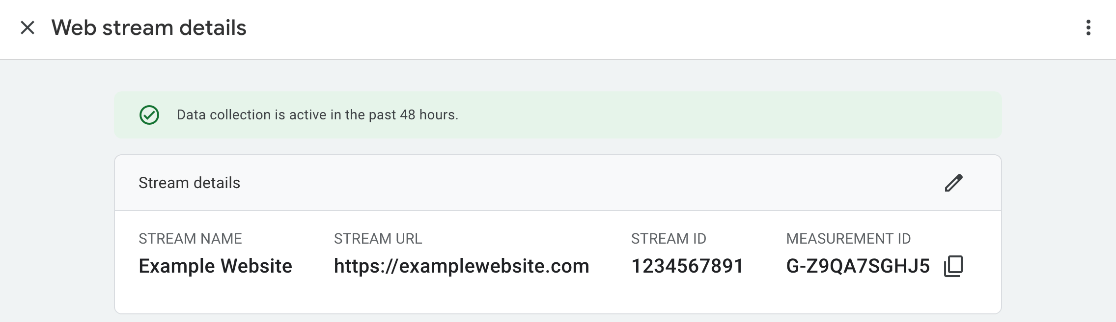
Keep in mind that this status looks back over two days, so it can’t confirm that tracking is working right this minute. A brand-new tag can also take up to 30 minutes to start collecting data. For a live answer, the Realtime report is the next place to look.
2. Check Web Traffic in Realtime Reports
The Realtime report is the fastest way to confirm that Google Analytics is tracking visits, because it shows activity from the last 30 minutes. Standard reports are slower. Google notes that data processing can take 24 to 48 hours, and the numbers in your reports can change during that time.
That’s why the real-time report is the easiest and quickest way to verify that you’ve set up Google Analytics correctly. It shows the number of active users in the last 30 minutes and in the last 5 minutes. Google describes Realtime as a best-effort service, so your test visit may take a few moments to appear.
To open it, go to your Google Analytics property, click Reports in the left menu, and then click Realtime overview. Next, visit your site in another browser window and watch for an active user to appear.

For a page-by-page view, click Realtime pages, right below Realtime overview in the same menu. This report lists the pages people are viewing right now. It’s a handy way to confirm that a specific page is tracked.
Pro Tip: Run your test visit in a private or incognito window while logged out of WordPress. Some setups skip logged-in site staff on purpose. The MonsterInsights plugin for WordPress, for example, doesn’t track logged-in administrators and editors by default, so a visit from your own admin account won’t show up.
If you’re using MonsterInsights, the best Google Analytics plugin for WordPress, you can view real-time reports right inside your WordPress dashboard. The Realtime report is included in MonsterInsights Plus and higher plans.
See Live Visitors Without Leaving WordPress
MonsterInsights adds a Realtime report to your WordPress dashboard, so you can confirm that a test visit registers without switching over to Google Analytics. It shows how many people are on your site right now, pageviews per minute, and the pages they’re viewing. The Realtime report is available on MonsterInsights Plus and higher plans.
See the Realtime ReportOnce MonsterInsights is installed and connected with Google Analytics, go to Insights » Reports and click Realtime in the report menu. The Right Now card shows how many active users are on your site. If that number goes up when you visit from a private window, Google Analytics is tracking your visitors.

The Pageviews Per Minute chart next to it shows activity over the last 30 minutes. The report refreshes about every 60 seconds, so you can leave the page open while you test.
3. Use Google Tag Assistant (a Free Google Analytics Checker)
The Realtime report can tell you that data is arriving, but it can’t tell you everything about your tracking setup. For example, it won’t show whether you have duplicate tracking tags, which can inflate your numbers.
Google Tag Assistant fills that gap. It’s a free Google Analytics checker from Google that shows every Google tag on a page and the events each one sends. To use it, open tagassistant.google.com.
From there, you can add a domain to start debugging it right away. You can also install the Tag Assistant extension for Chrome, which combines the older Tag Assistant Legacy and Tag Assistant Companion extensions. The extension is optional, and it adds extras such as detecting tags inside iframes.

We’ll go ahead and click the Add domain button and enter the URL of the site we want to check:

When you click Connect, your website opens in a new window with debugging turned on. Leave that window open, but switch back to Tag Assistant to see the tags installed on the page:
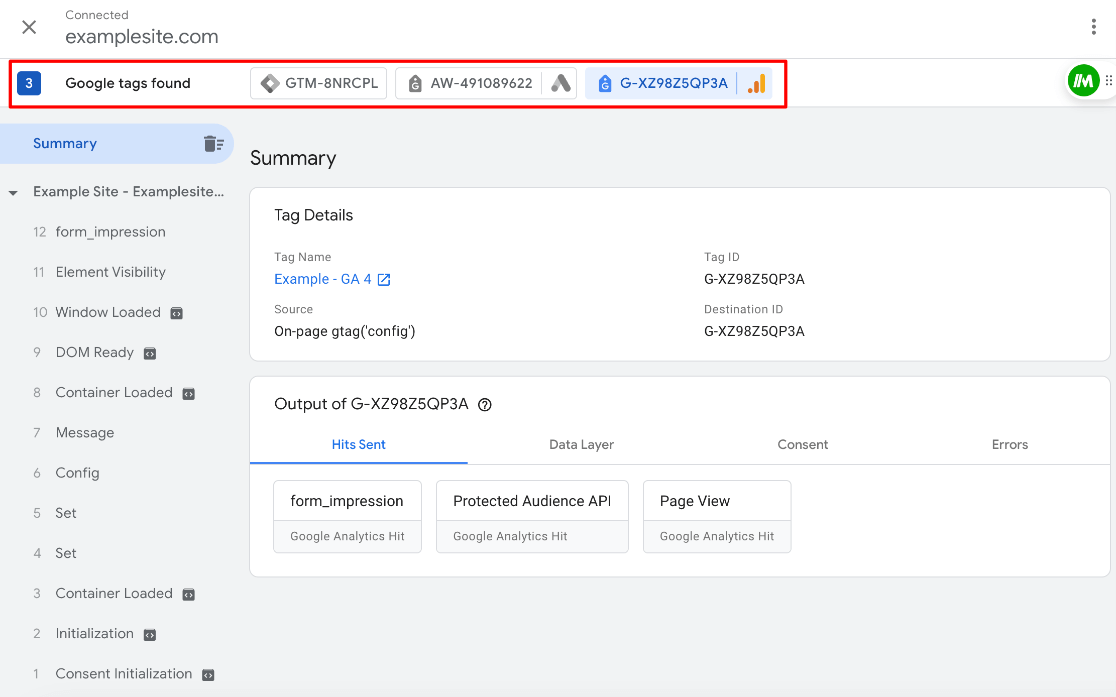
As you can see in our screenshot, the example website has a Google Analytics tag, a Google Ads tag, and a Google Tag Manager container. No duplicates!
Tag Assistant also turns on debug mode for your test session. That means you can watch the same events arrive inside Google Analytics, too. Go to Admin, and under Data display, click DebugView.
4. View the Analytics Tracking Code in Your Source Code
Your site’s source code is the raw HTML your browser loads, and checking it confirms whether the Google Analytics tracking code is on the page at all. This method works best for someone who’s somewhat familiar with code.
To start, you can use a keyboard shortcut to view the source code of your site. If you’re on Windows or Linux, press Ctrl + U. If you’re on a Mac using Chrome, press Command + Option + U.
Alternatively, you can right-click anywhere on the page and click the View page source option. The wording may be slightly different depending on your web browser.
Here’s what the Google Analytics code looks like if your site uses gtag.js:
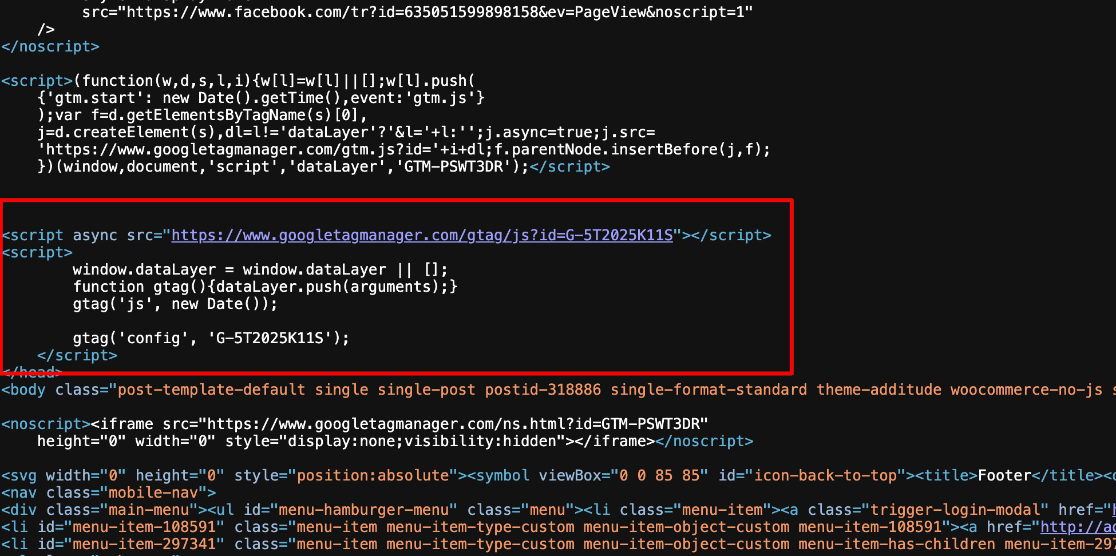
If you see this code in your source code, Google Analytics is installed on your site. MonsterInsights outputs its own version of this code, so on a MonsterInsights site, the lines after the gtag/js script won’t match the example exactly. You’ll also see a comment just above that script that begins with “This site uses the Google Analytics by MonsterInsights plugin.”
Pro Tip: Press Ctrl + F (Command + F on a Mac) and search for gtag/js or your Measurement ID, which starts with G-. If the same Measurement ID turns up in two separate tracking snippets, the tag may be installed twice, which can double-count your visits.
Finding the code confirms that Google Analytics is installed, but it doesn’t prove that data is reaching your property. A mistyped Measurement ID, for example, still shows up in your source code. That’s why we suggest opening your Realtime report next to see if data is coming in correctly.
Installed Isn’t the Same as Working
Your source code and Tag Assistant show that a tag is on the page. Your data stream status and the Realtime report show that Google Analytics is actually receiving data. Use at least one check from each pair, and make sure the Measurement ID on your site matches the one on your data stream.
If the tracking code is missing entirely, it was either never added or something removed it, such as a theme switch. Reinstalling the code, or reconnecting MonsterInsights to Google Analytics, puts it back.
How to Keep Your Own Visits Out of Google Analytics
Your own visits to your site can skew your Google Analytics data, especially when you and your team check pages often. Once you know tracking is working, excluding that internal traffic keeps the numbers focused on real visitors.
If you’re using MonsterInsights on WordPress, logged-in administrators and editors are excluded from tracking by default. You can also exclude other user roles from being tracked in Google Analytics, as long as those users are logged in to WordPress. That way, your own team’s traffic won’t skew your data.
To exclude more user roles, go to Insights » Settings and click the Advanced tab. Then, in the Permissions box, find Exclude These User Roles From Tracking and add the user roles you don’t want to track in Google Analytics. When you’re done, click Save Changes.

For more detail, check out our guide on how to stop Google Analytics from tracking logged in users in WordPress.
Set Up Clean Tracking From Your WordPress Dashboard
MonsterInsights connects your WordPress site to Google Analytics without code and keeps your team’s logged-in visits out of the data, so your reports reflect the people you’re trying to reach. You can also review those numbers in reports right inside WordPress.
See MonsterInsights PlansUser role exclusions only cover people who log in to WordPress. Your team may also browse the site while logged out, such as from the office. To exclude those visits, see our guide on how to create an IP address filter in Google Analytics.
FAQs About Checking if Google Analytics Is Working
How long does it take for Google Analytics to start working?
Google says data collection can take up to 30 minutes to start after you add the tag. Once it does, visits appear in the Realtime report shortly after they happen. Standard reports take longer, because Google Analytics can need 24 to 48 hours to finish processing data.
Why is Google Analytics not showing any data?
Possible causes include a missing tracking tag, a Measurement ID that doesn’t match your data stream, or test visits that were excluded from tracking. We’d start by checking your data stream status, then look for the tag in your source code or with Tag Assistant. If you use MonsterInsights, remember that logged-in administrators and editors aren’t tracked by default.
How do I check if my Google Analytics tag is firing?
Google Tag Assistant is the most direct way. Connect your site at tagassistant.google.com, and it lists each Google tag on the page along with the events it sends. Tag Assistant also turns on debug mode, so you can watch the same events arrive in Google Analytics under Admin » Data display » DebugView.
Is Google Tag Assistant free?
Yes. Tag Assistant is a free tool from Google, and you can use it straight from tagassistant.google.com. Google also offers a free Tag Assistant extension for Chrome, which adds features such as detecting tags inside iframes.
Why can’t I see my own visits in Google Analytics?
Your visits may be excluded on purpose. MonsterInsights doesn’t track logged-in WordPress administrators and editors by default, and a Google Analytics data filter can exclude internal traffic you’ve defined. To test your tracking, visit your site in a private window while logged out of WordPress.
What happens if Google Analytics is installed twice?
When the same tag loads twice on a page, Google Analytics can count each pageview and event twice, which inflates your traffic numbers. Google’s tag setup instructions say not to add more than one Google tag to each page. Tag Assistant lists every tag it finds, which makes a duplicate easier to spot.
Now you know how to check if Google Analytics is working, and how to keep your own visits out of the data. If you’d like to keep your tracking accurate, check out the following beginner-friendly guides:
- Google Analytics Not Working: Common Errors & How to Fix Them
- MonsterInsights vs. Google Analytics – What’s the Real Difference?
- How to Track Link and Button Clicks in WordPress (Step by Step)
- How to Install Google Tag Manager in WordPress (No Coding Required)
- How to Block WordPress Referrer Spam in Google Analytics
Follow us on Twitter, Facebook, and YouTube for more Google Analytics tips.