


Are you wondering how to delete a Google Analytics account, property, or data stream? Or maybe you’re questioning if deleting extra GA4 accounts is a good idea or if it’ll mess up your tracking.
Whatever questions you have about deleting or removing data from your Google Analytics 4 account, we’ll answer them here.
Here’s what’s included in our article:
GA4 Account Structure Overview
Before you delete anything in your Google Analytics account, you should understand how it’s structured so you don’t accidentally delete something you need. Removing the wrong property or data stream from your account will stop your website visitor tracking and permanently delete historical data.
GA4 has a hierarchy consisting of:
Organization » Account » Properties » Data Streams
Let’s take a closer look at each level.
- Organization (optional): Especially if you use multiple Google tools (like Google Ads, Google Analytics, Google Search Console, and Google Tag Manager), you might want to create an Organization to act as a hub for your users.
- Account: Your account is the top level of Google Analytics, and it includes all of your data for every property. You might use separate accounts for different companies or brands.
- Property: A property is where you’ll set up tracking for your website or app. If you used Google Analytics before GA4 came out, you’ll probably have a Universal Analytics property and a GA4 property for each of your websites. For example, if you owned a chain of restaurants and you had a separate website for each restaurant, you’d want to create a separate property for each one.
- Data stream: A data stream is the connection to your website or app. It’s where most of your data collection settings live (like which events should be counted as conversions, for example), and it’s where you’ll find your tracking code and measurement ID.
Should you delete a Google Analytics account, property, or data stream?
You can have up to 100 accounts, each account can contain up to 2,000 properties, and each property can have up to 50 data streams. So, it’s unlikely you’ll ever have a storage issue.
If you’ve got a few too many accounts and properties to scroll through every time you need to find one, click the star next to the properties you access the most often in the account chooser dropdown to make them appear in your Favorites tab:

However, if you do decide to delete a Google Analytics account, property, or data stream, the level at which you make a deletion determines what data is removed.
Deleting a Google Analytics Account
This permanently removes your entire Analytics setup, including all properties and data streams in your account. All historical data will be lost. Delete an account only if you know you don’t need any of the properties or data in it any longer.
Deleting a Google Analytics Property
This removes all data streams contained within that property and all analytics data that’s been gathered. Any and all historical data within that property will be deleted. Delete a property only if it has never been used or you know you no longer need the data inside it and it’s not currently tracking new data.
Deleting a Google Analytics Data Stream
This only removes the connection (tracking) with that particular source, like a website or app, along with your stream’s settings and integrations. Other data streams and historical data within the property are kept. Delete a data stream only if it’s not gathering new data.
When to Consider Google Analytics Deletions
There can be great reasons to delete components from your GA4 account, such as:
- You have an old website or app that is no longer active
- A product, brand, or business was discontinued
- You need to restart your Analytics setup from scratch
- You’re simplifying your account structure
However, use discretion before deleting. Remember to think about whether you’ll need the data that’s in your account or property before you delete it. Make sure a data stream is no longer tracking new data before you delete it. You can also explore alternatives like data deletion requests if you only need to remove sample/test data.
If you’re absolutely sure you want to proceed with deleting, here’s how to do it.
How to Delete a Google Analytics Account
Step 1: In the GA4 account you want to delete, head to Admin » Account » Account details:

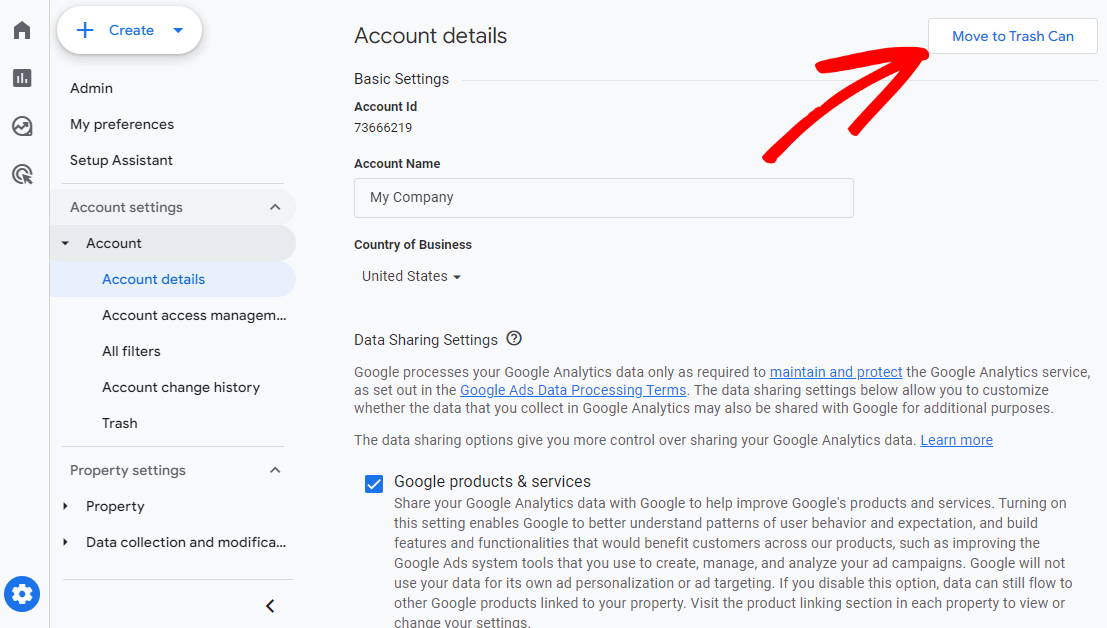
Step 2: Click the Move to Trash Can button:
Step 3: Read through the warnings and recommendations, then click the Trash account button (or the Cancel link if you’ve changed your mind):
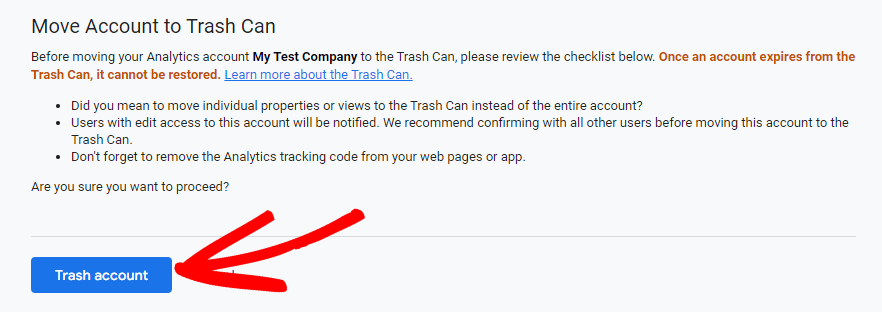
That’s it! You’ll still be able to see and recover the account from the trash can for 35 days. When that time is up, it’ll be permanently deleted.
How to Delete a Google Analytics Property
Step 1: Log into the property you wish to delete, then go to Admin » Property details:

Step 2: Click the Move to Trash Can button:

Step 3: Click Move to Trash:
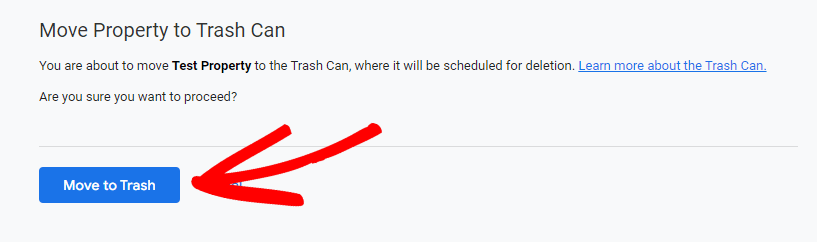
That’s it! You’ll still be able to see and recover the property from the trash can for 35 days. When that time is up, it’ll be permanently deleted.
How to Delete a Google Analytics Data Stream
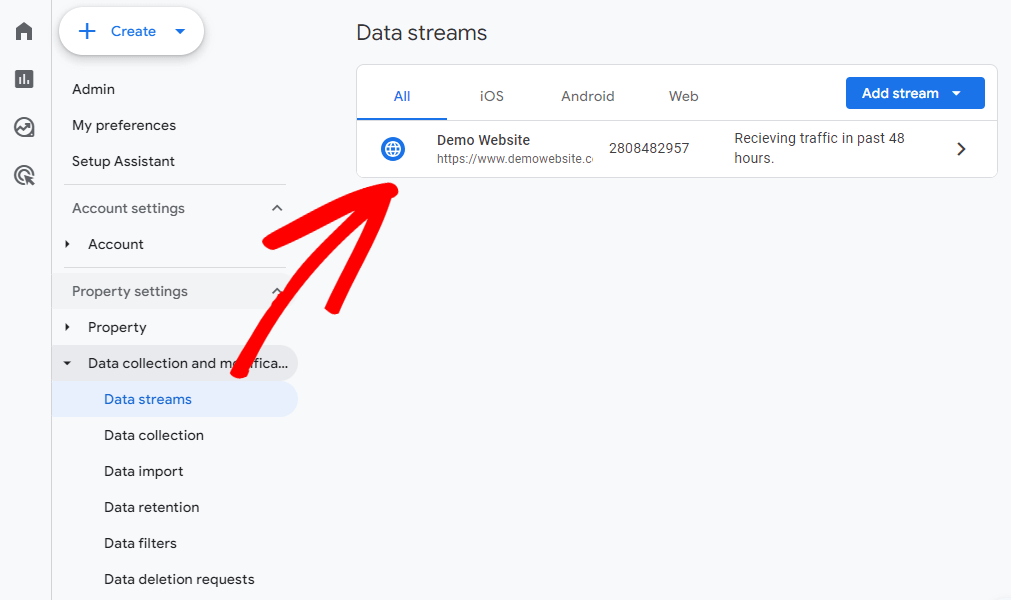
Step 1: Inside the property where your data stream is located, go to Admin » Data collection and modification » Data streams:

Step 2: Select the data stream you want to delete:
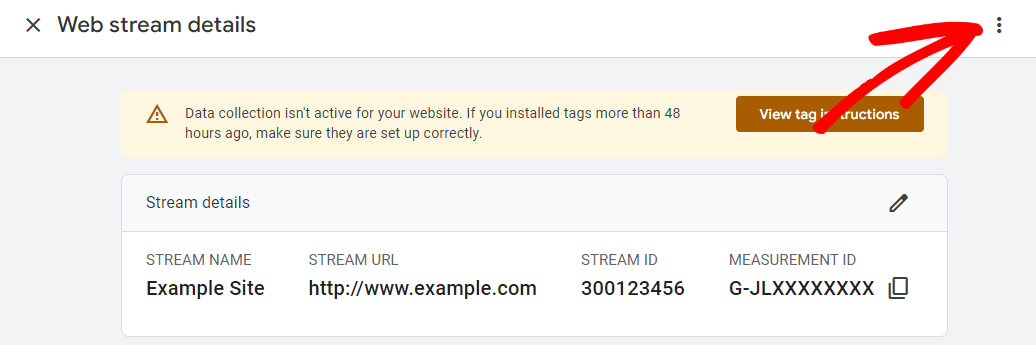
Step 3: Click the 3 dots » Delete stream:
Step 4: Click Delete stream in the popup:
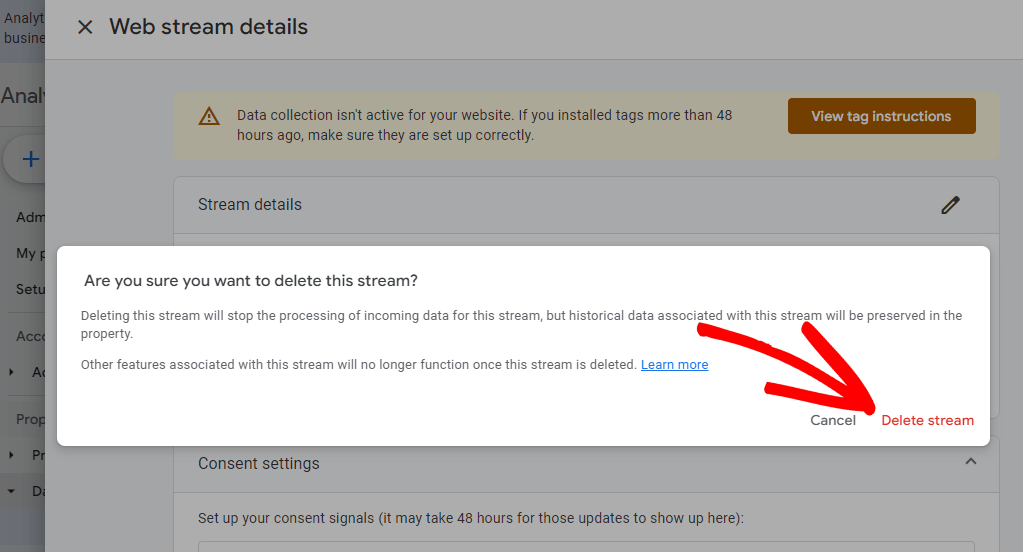
Deleting a data stream is an immediate, irreversible action. The data is permanently removed.
Delete a Google Analytics Account: FAQ
How do I remove myself from Google Analytics?
To remove yourself from a Google Analytics account, go to Admin » Account access management » Remove myself.
If I delete a property, will I lose all my historical data?
Yes, deleting a property will permanently remove all data streams/views and data associated with that property. However, data from other properties in your account will be retained.
What happens if I delete my GA4 account by accident?
You have a 35-day grace period after moving an account or property to the trash can. During this time, you can restore it from the Trash Can section. After 35 days, the deletion becomes permanent.
I only want to remove test data, not delete anything permanently. What should I do?
Consider submitting a data deletion request instead of deleting entire components. This allows you to remove just the data you don’t want without impacting your setup.
If I start over with a new GA4 property, what happens to my old property data?
The data from the old property will remain untouched in your account unless you manually delete that property. You can view/access data from multiple properties.
That’s it!
If you liked our tutorial on deleting a Google Analytics account, property or stream, make sure to check out:
Google Analytics Permissions Guide + How to Add a User
How to Block WordPress Referrer Spam in Google Analytics
How to Easily Keep PII Out of Google Analytics
8 Ways to Get Google Analytics Help & Support
Not using MonsterInsights yet? What are you waiting for?
And don’t forget to follow us on X, Facebook and YouTube for more helpful Google Analytics tips.