


Want to understand how visitors actually experience your website—not just what they click, but how far they scroll, what they ignore, and where they hesitate? Heatmap tools give you a visual, intuitive way to see real user behavior so you can make data-driven improvements that boost engagement and conversions.
For WordPress users, installing a heatmap tool is fast and straightforward. Most options require nothing more than adding a small script or activating a plugin, and within minutes you’ll start collecting insights about how people interact with your pages.
Below, we compare the best website heatmap tools for WordPress so you can choose the one that fits your goals, budget, and workflow.
In This Article:
What Is a Website Heatmap Tool?
A website heatmap tool visually shows you how visitors interact with your site. Instead of guessing where people click, how far they scroll, or which elements draw attention, heatmaps convert user behavior into color-coded data. Warmer colors (reds and oranges) highlight areas with the most activity, while cooler colors indicate sections users ignore.

Some tools also include scrollmaps, mouse-movement tracking, attention maps, and session recordings so you can understand the full story behind how visitors navigate your pages. Heatmaps make complicated analytics instantly understandable—even if you’re not a data expert.
Why You Need a Heatmap Tool for Your WordPress Site
Even if you already use Google Analytics, heatmaps give you a deeper, more visual layer of insight. They reveal how people behave, not just what they do.
With a heatmap tool, you can:
- Identify which CTAs, buttons, or links get the most attention
- See whether visitors scroll far enough to view important content
- Spot distracting elements users click even though they’re not meant to be interactive
- Understand why some pages convert better than others
- Diagnose layout issues that cause drop-offs or frustration
- Test new design changes and immediately see their impact
Heatmaps help you make evidence-based design decisions that improve conversions, user experience, and engagement. For WordPress users, the setup is usually just a quick script or plugin install—making heatmaps one of the easiest CRO tools to start using.
Top 6 WordPress Heatmap Plugins
| HEATMAP TOOL | BEST FOR | STARTING PRICE | FREE PLAN / TRIAL |
|---|---|---|---|
| Crazy Egg | Click, scroll, and visitor recordings | $29/month | 30-day free trial |
| UserFeedback | WordPress users needing click, scroll, and mouse-movement heatmaps | Free; Heatmaps in Elite plan | Free version available |
| MonsterInsights | WordPress users wanting click & scroll tracking via Google Analytics | Included in Pro plans | Free Lite version on WordPress.org |
| Hotjar | Heatmaps plus surveys and session recordings | $39/month | Limited free plan |
| Lucky Orange | Heatmaps plus full CRO toolkit | $10/month | Free plan + trial |
| Aurora Heatmap | Native WordPress heatmap plugin | Free; Pro available | Free version in WP repository |
There are multiple great WordPress plugins that create website heatmaps. They all have a few different features, so check them out!
1. Crazy Egg

Crazy Egg is a popular website heatmap tool that will create both heatmaps and recordings of how visitors used your site.

Some of Crazy Egg’s features are:
- Visual heatmaps
- Scrollmaps
- Referral traffic reports
- Audience demographic reports
- A/B tests
Crazy Egg offers a free 30 day trial, then costs $24 per month and up for a plan. Adding the code into your WordPress site is easy. You can download a free plugin from Crazy Egg, or use your favorite code insertion plugin.
2. UserFeedback

UserFeedback is the only WordPress-native heatmap tool on this list, giving you powerful click, scroll, and mouse-movement tracking directly inside your WordPress dashboard. It’s one of the easiest ways to understand how visitors actually interact with your pages — and it installs with just a couple of clicks.
Unlike traditional heatmap tools that require external dashboards, script installs, and manual configuration, UserFeedback runs entirely inside WordPress. You can create new heatmaps, filter visitor behavior, and review insights without ever leaving your site.
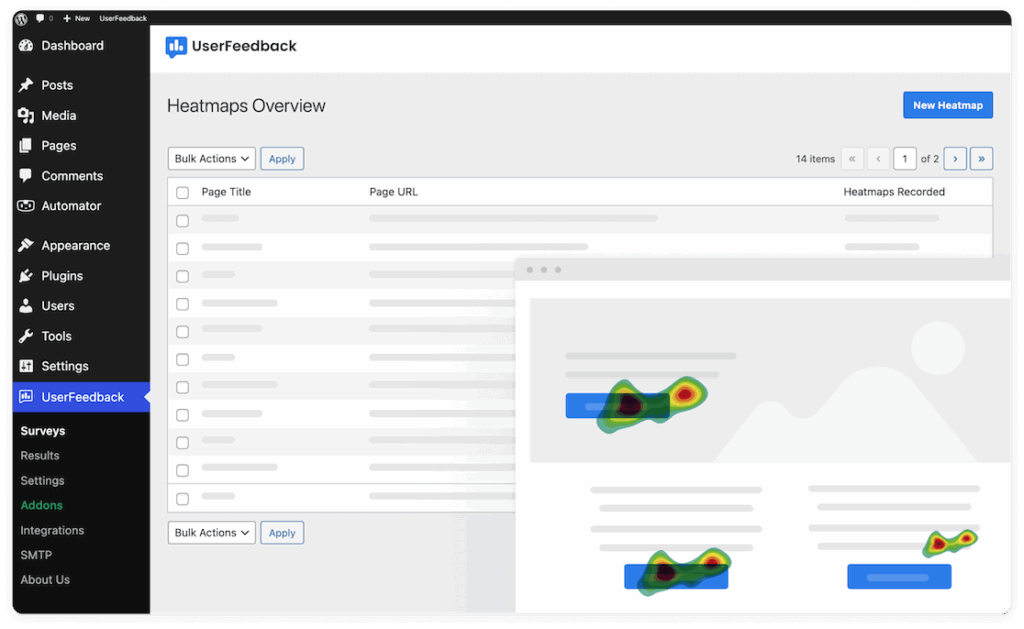
Some of UserFeedback’s standout heatmap features include:
- Click, scroll, and mouse-movement heatmaps
- Device-specific heatmaps (desktop, tablet, mobile)
- Date-range comparisons to see how behavior changes over time
- One-click creation of heatmaps for any page on your site
- Automated data cleanup to keep your database running fast
UserFeedback’s biggest advantage is that it goes beyond heatmaps. You can also run surveys, gather user feedback, and pair behavioral insights with actual visitor responses — giving you a complete picture of what users do and why they do it.
There’s a free version available, and the full heatmap toolset is included in the Elite plan.
3. MonsterInsights

MonsterInsights is the best Google Analytics plugin for WordPress. It allows you to easily connect your WordPress site with Google Analytics so you can view all the data that matters most right in your WordPress dashboard.

MonsterInsights has a bunch of other features as well that can help you set up and use Google Analytics effectively and easily. One of those features is what’s called Enhanced Link Attribution. It sounds complicated, but it’s actually a pretty easy way of seeing which links and buttons people are clicking on on your site.
Enhanced link attribution is a Google Analytics feature that differentiates between identical links on the same page, and gives you a visual map of what percentage of clicks were on each element on your page.

So, if you have 2 or more links to the same destination from one page, enhanced link attribution will show you which link is getting the most clicks. At a glance, you can see which buttons on your landing page, which internal links, or which banners in your sidebar are grabbing the most clicks.
For more on what enhanced link attribution is and how to set it up, read The Beginners Guide to Enhanced Link Attribution in Google Analytics.
MonsterInsights also tracks scroll depth right out of the box, no setup required.
4. Hotjar

Hotjar is a heatmapping tool that will create both heatmaps and recordings of visits. Their heatmap tool will show you were visitors click, move, and scroll.
Beyond heatmaps, Hotjar also includes customer feedback and survey tools, so you can ask visitors for feedback right on your website.
This tool has a limited free version that you can use to try it out, then grab a plan for $39 per month and up.
Hotjar does also have an official WordPress plugin that lets you input your Hotjar ID to complete a simple install.
5. Lucky Orange

Lucky Orange is, like MonsterInsights, a larger tool that offers much more than the ability to see where visitors click. This one focuses a bit more on conversion optimization, with realtime analytics, website heatmaps, visitor recordings, chat, polls, and form analytics.
Also, Lucky Orange’s dynamic heatmaps allow you to study visual engagement patterns including dynamic elements like popups, dropdowns and forms.
There’s a free trial for any of the plans, plus an always free, limited plan. The paid plans cost $10 and up. They also have their own official WordPress plugin.
6. Aurora Heatmap

The last tool on our list is, like MonsterInsights, a WordPress plugin instead of an external tool that happens to work on WordPress. Aurora Heatmap, though, is just focused on heatmaps.
So, Aurora Heatmap is accessed through your WordPress admin. There, you can set up which pages you’d like to track and see your heatmaps.

Aurora Heatmaps has a paid version and a free version that you can check out. The free version is available by opening your WordPress dashboard, then navigating to Plugins » Add new, then searching for Aurora Heatmaps.
That’s it!
We hope you found the right heatmap tool for your site. If you’re looking for more ways to understand your users’ engagement, check out Top 5 User Engagement Metrics for Your Website Explained.
And don’t forget to follow us on Twitter, Facebook and YouTube for more helpful Google Analytics tips.
Frequently Asked Questions About Heatmap Tools
What are website heatmaps?
Heatmaps visually display how users interact with your website by highlighting areas with the most clicks, taps, scrolling, or cursor movement. This helps you quickly identify which elements attract attention—and which ones visitors ignore.
Do heatmap tools slow down my WordPress site?
Most modern heatmap tools load asynchronously and have minimal impact on performance. Tools like Crazy Egg, Hotjar, and Lucky Orange use lightweight scripts designed to avoid blocking your page load.
Which heatmap tool is best for beginners?
For simple setup inside WordPress, Aurora Heatmap is the easiest to get started with because it installs like a normal plugin and requires no external dashboard. If you want behavior analytics through Google Analytics, MonsterInsights adds click tracking with no extra configuration.
Can I use heatmaps for conversion optimization?
Yes! Heatmaps reveal friction points—such as CTAs being ignored, users not scrolling far enough, or important content appearing below the fold—so you can test design improvements that increase conversions. Tools like Lucky Orange even include form analytics and visitor recordings for deeper CRO insights.
Are free heatmap tools enough?
Free versions of Hotjar, Lucky Orange, and Aurora Heatmap are useful for light testing, but they typically limit the number of pages or sessions you can track. For ongoing optimization, a paid plan provides more consistent data and long-term insights.