


GDPR enforcement has now crossed €6 billion in total fines since the regulation took effect — and Google Analytics is not off the hook.
Regulators in Austria, France, Italy, and Denmark have all issued rulings finding that standard Google Analytics configurations violate GDPR due to data transfers to US servers.
In other words, if you installed GA4 and haven’t changed the default settings, your site is likely already out of compliance
The good news: you can get your site into a GDPR-compliant configuration without hiring a lawyer or touching a line of code. We’ve helped thousands of WordPress site owners do exactly this, and the steps are more manageable than most people expect.
This guide walks you through each step — what to configure, why it matters, and how to automate most of it on WordPress.
Legal Disclaimer: Due to the dynamic nature of websites, no single plugin can offer 100% legal compliance. This article is for informational purposes only and does not constitute legal advice. Please consult an internet law attorney before implementing any solutions to ensure they meet your specific business and legal requirements.
In This Article:
What Is GDPR and Who Does It Apply To?
The General Data Protection Regulation (GDPR) is a European Union privacy law that governs how personal data is collected, processed, and stored. It came into force in May 2018 and carries fines of up to €20 million or 4% of global annual turnover — whichever is higher.
Here’s the part that surprises many site owners: GDPR applies to you even if your business is not based in the EU. If your website receives visitors from EU member states — and most websites do — you’re subject to its rules.

Under GDPR, website analytics data counts as personal data when it can be used to identify an individual. IP addresses, persistent cookies, and User IDs all qualify. That makes Google Analytics tracking without the right configuration a compliance risk by default.
The law also requires that users give informed, specific, and freely given consent before you collect their data — including analytics data. Pre-ticked boxes and vague “by continuing to browse” notices don’t meet the standard.
Is Google Analytics GDPR Compliant By Default?
No — not without configuration.
GA4 does not store IP addresses the way Universal Analytics did. That’s a meaningful improvement. But GA4 still sends data to Google’s US-based servers, and EU data protection authorities have flagged this as a problem under GDPR’s cross-border data transfer rules (Chapter V).
In January 2022, Austria’s data protection authority ruled that a site using Google Analytics was violating GDPR.
France’s CNIL followed with a similar decision in February 2022. Italy’s Garante and Denmark’s Datatilsynet have since issued comparable rulings. These are not theoretical risks — they are documented enforcement actions against real websites.
Beyond the data transfer issue, a standard GA4 install still has these compliance gaps by default:
- No mechanism to obtain or respect user consent before tracking begins
- Remarketing and advertising features may be enabled, collecting additional behavioral data
- Personally identifiable information (PII) can inadvertently end up in URLs and get sent to GA4
- Data retention periods may be left on settings you haven’t reviewed
- No user opt-out mechanism beyond first consent
Each of these gaps requires a deliberate fix — and the sections below cover exactly what to do.
If your site also has UK traffic, it’s worth knowing that the PECR compliance rules for Google Analytics run parallel to GDPR and carry their own enforcement track.
How to Make Google Analytics GDPR Compliant: Step-by-Step
These five steps address the core compliance requirements for running GA4 on a GDPR-covered site. Work through them in order — each one closes a specific gap.
Step 1: Set Up a Cookie Consent Banner with Consent Mode v2
GDPR requires that GA4 tracking does not fire until a visitor has actively given consent. A cookie notice that pops up while GA4 is already running in the background is not compliance — it’s decoration. What you need is a consent management platform (CMP) that genuinely blocks tracking scripts from executing until consent is granted.
Google Consent Mode v2 is the framework that communicates a visitor’s consent choices to GA4 and Google Ads. When someone declines analytics cookies, Consent Mode v2 tells GA4 to stop collecting personal data for that user. Google made Consent Mode v2 mandatory for EEA advertisers in March 2024 — which means if you’re running any Google Ads to EU users, you need it. For analytics-only sites, it’s still the right implementation.
For WordPress sites, WPConsent handles all of this in one plugin. It automatically blocks third-party scripts — including GA4 — before consent is given, implements Consent Mode v2 with a single toggle, and stores all consent records in your own WordPress database rather than routing them through a third-party server.

If you’re already running a different CMP, MonsterInsights also integrates with CookieYes, Complianz, Cookiebot, and Cookie Notice — connecting directly so GA4 tracking on your WordPress site automatically respects whatever consent signals those plugins capture.
The tradeoff: visitors who decline consent won’t be tracked at all, which means your analytics will undercount actual traffic. That’s a real data gap — and for most sites it’s the right call legally, but worth understanding before you implement.
The Cookie Consent Plugin Built for WordPress
WPConsent blocks tracking scripts before consent is given, implements Google Consent Mode v2 automatically, and stores all consent records in your own WordPress database — no third-party servers, no pageview limits.
Get WPConsent FreeStep 2: Configure GA4 Data Retention Settings
GDPR requires that you don’t hold personal data longer than necessary. GA4’s default data retention period is only 2 months — short enough to affect your historical reporting.
You can extend it to 14 months, and it’s worth doing, both for analytics utility and to avoid gaps in year-over-year comparisons. At GA4’s default of 2 months, you lose the ability to run ad-hoc queries on older data — including Explore reports and any custom report that applies a segment or secondary dimension to historical sessions.
Year-over-year comparisons break. The 14-month setting is the practical minimum for meaningful reporting.
Go to GA4 Admin and find the Data Retention link in the Data collection and modification section.

On this screen, make sure to select 14 months.
This is a GA4-side setting — no plugin controls it for you.

Fourteen months is the maximum available retention period for user-level and event data in GA4. It gives you a full year of data plus a buffer for trend comparisons.
Step 3: Disable Remarketing and Demographics Data Collection
GA4’s advertising features — Google Signals, demographics and interests data, and remarketing — collect behavioral data that goes beyond basic analytics.
Under GDPR, this category of processing requires a more specific lawful basis than standard measurement: explicitly, advertising or personalization consent as a distinct consent purpose.
The practical implication: your cookie banner needs to ask visitors separately for advertising consent — not just “I accept analytics cookies.” A banner that only collects analytics consent does not cover these features. If yours doesn’t distinguish between analytics and advertising consent categories, these features need to be turned off.
To disable them, go to GA4 Admin » Data Collection and Modification » Data Collection and turn off Google Signals data collection.

Then check Admin » Property Settings and disable advertising personalization features.
If your consent management platform separates consent into categories — analytics, advertising, personalization — you can keep these features enabled for users who consent to them.
A properly configured CMP will automatically disable advertising data collection for visitors who decline that consent category and enable it only for those who explicitly agree.
WPConsent, CookieYes, Complianz, and Cookiebot all support multi-category consent, so if you’ve set your banner up with distinct advertising and analytics purposes, you’re covered.
For sites not running Google Ads campaigns, turning these off is the right default regardless. There’s no analytics benefit to Google Signals if you’re not using remarketing audiences, and disabling it removes a layer of data collection you don’t need.
Step 4: Keep PII Out of GA4
Personally identifiable information (PII) can end up in your GA4 data without you realizing it. The most common path is URLs that contain personal data due to how your site works.
For instance, a contact form submission might generate a URL like yourwebsite.com/contact-us/[email protected].
If GA4 records that pageview, that email address is now in your analytics data — a direct GDPR violation. The same problem can appear with names, addresses, usernames, and other data passed through query strings.
To address this manually in GA4, you can create exclusion filters for known PII query parameters.
This works, but it requires you to identify every problematic parameter in advance — and update the filters each time your site changes.
The automated approach — covered in the MonsterInsights section below — handles this automatically on the WordPress side without manual filter management.
Step 5: Enable a User Opt-Out Mechanism
GDPR gives users the right to withdraw consent at any time. For analytics tracking, that means providing a way for visitors to opt out of GA4 tracking even after previously consenting.
Your cookie consent banner needs to be accessible at all times — not just on first visit. Most CMPs handle this with a persistent cookie preferences link in the site footer. When a user updates their preferences, that new consent signal should be communicated back to GA4 via Consent Mode.
If you installed WPConsent in Step 1, this is already handled — WPConsent automatically adds a persistent consent preferences link that visitors can use at any time to review or withdraw their consent choices, with those updated signals passed back to GA4.
If you’re not using one of those consent plugins, MonsterInsights also supports creating a standalone opt-out link — see the opt-out links documentation for setup instructions.
Worth Knowing
Consent Mode v2 is not optional if you want GA4 to work properly with Google Ads in the EU. Without it, Google’s consent requirements may limit your remarketing audiences and conversion modeling — even for users who do consent. See the complete guide to GA4 cookies and consent for the full picture.
How MonsterInsights Automates Google Analytics GDPR Compliance
The five steps above work — but they require manual configuration across GA4, your CMP, and your WordPress site. MonsterInsights, the WordPress analytics plugin, automates most of this from your WordPress dashboard. Here’s how each piece maps to the steps above.
EU Compliance Addon
The EU Compliance Addon (available on Plus and above) applies a set of privacy-friendly configurations to your GA4 tracking automatically when activated. Here’s what it handles for you:
- Disabling demographics and remarketing data collection
- Disabling User ID tracking
- Disabling author tracking
- Deferring GA4 tracking until a visitor gives cookie consent
One nuance worth knowing: disabling remarketing and advertising demographics removes data collection for Google Ads targeting — but you’ll still see aggregated demographic and interest data in your GA4 reports.

The Addon also integrates directly with major cookie consent plugins — no code required.
If you’re already running CookieYes, Complianz, Cookiebot, or Cookie Notice, MonsterInsights can connect to them automatically and ensure GA4 tracking on your WordPress site respects the consent signals those plugins capture.

One important distinction: MonsterInsights works alongside CMPs that support Consent Mode v2 — it ensures GA4 tracking on the WordPress side respects those consent signals.
Your CMP still handles the actual consent collection and the Consent Mode v2 communication with Google. For a full list of supported consent plugins and setup instructions, see the CookieYes and Complianz integration announcement.
If you haven’t picked a consent plugin yet, WPConsent integrates natively with MonsterInsights and implements Consent Mode v2 without any extra configuration.
For full setup instructions, see the EU Compliance Addon documentation.
Privacy Guard
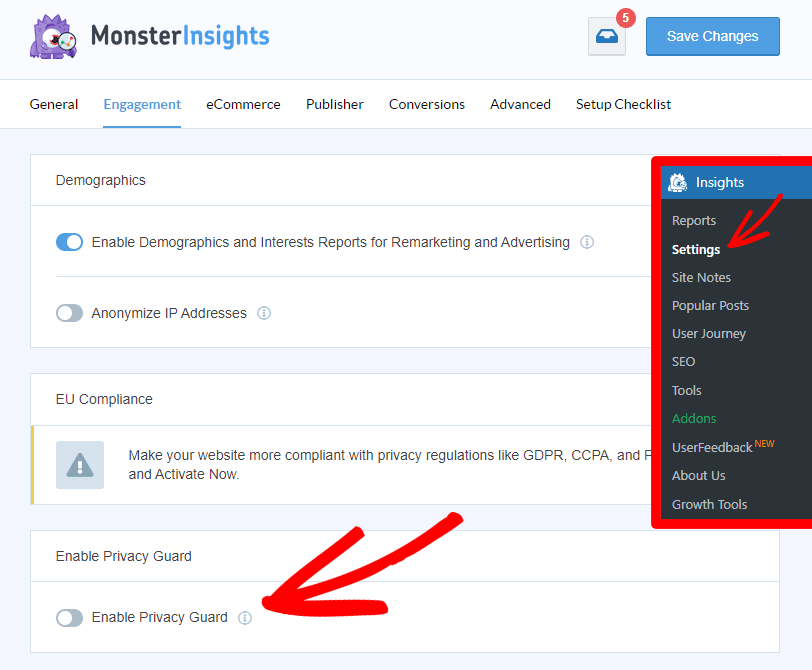
Privacy Guard is a separate MonsterInsights feature (also on Plus and above) that automatically scans URLs and form submissions before they reach GA4 — and strips out any PII it finds.
You’ll find Privacy Guard at Insights » Settings » Engagement » Privacy Guard — it’s a standalone toggle, separate from the EU Compliance Addon settings.

It’s possible for Google Analytics to record the personal data of your users without your knowledge. Sometimes, personal information gets added to URLs because of how your website works.
For example, submitting a contact form might cause something like: yourwebsite.com/contact-us/[email protected]
With Privacy Guard switched on, that email address gets stripped from the URL before it ever reaches GA4. The same applies to names, addresses, usernames, and other personally identifiable data that can appear in query strings.
For a closer look at how the feature works, see the full Privacy Guard feature walkthrough.
Data Retention: What MonsterInsights Does and Doesn’t Control
MonsterInsights provides documentation and guidance on GA4 data retention — but the retention setting itself lives inside GA4, not your WordPress dashboard. You’ll need to log into GA4 and set it manually as described in Step 2 above.
For a full walkthrough of the GA4 side of the setup, see the MonsterInsights documentation.
Stop Worrying About GDPR — Let MonsterInsights Handle It
The EU Compliance Addon automatically applies privacy-safe GA4 settings to your WordPress site — no code, no GA4 config required. Works with CookieYes, Complianz, Cookiebot, and Cookie Notice out of the box. Available on Plus and above.
Get MonsterInsights with EU ComplianceVideo Tutorial: Google Analytics GDPR Compliance
FAQs About Google Analytics GDPR Compliance
What is GDPR and how does it affect website analytics?
GDPR is a European Union data privacy regulation that requires you to have a lawful basis before collecting personal data from EU residents. For website analytics, that typically means obtaining explicit consent before firing tracking scripts like Google Analytics. GA4 uses cookies and can track individuals across sessions — which qualifies it as personal data processing under GDPR. Sites that collect analytics data from EU visitors without consent, or without the right technical safeguards, are exposed to enforcement action and significant fines.
How can I make Google Analytics GDPR compliant on my website?
The five core steps are: install a cookie consent banner that blocks GA4 until consent is given, implement Consent Mode v2 so GA4 respects user choices, disable advertising and remarketing features unless you have a specific legal basis for them, prevent PII from entering your analytics data, and configure a 14-month data retention period in GA4. On WordPress, the EU Compliance Addon from MonsterInsights automates most of these steps — connecting directly to major cookie consent plugins and applying privacy-safe settings to your GA4 tracking without any code.
Do I need user consent to use Google Analytics under GDPR?
Yes, in almost all cases. Analytics cookies are not strictly necessary for a site to function — which means they require freely given, specific, and informed consent before they fire. Some organizations try to rely on “legitimate interests” as a legal basis instead of consent, but EU data protection authorities have generally not accepted this argument for analytics tracking. The safest approach is to obtain opt-in consent before GA4 loads, using a compliant cookie consent banner that supports Consent Mode v2.
Can I still use Google Analytics in Europe despite GDPR regulations?
Yes — but you need to configure it correctly. The rulings in Austria, France, Italy, and Denmark did not ban Google Analytics outright. They found that unconfigured, standard GA4 setups violate GDPR because of how data is transferred to US servers without adequate safeguards. With the right setup — Consent Mode v2, consent-gated tracking, disabled advertising features, and PII protection — you can run GA4 on EU-visitor traffic in a way that aligns with current regulatory guidance. No plugin can guarantee full legal compliance; consult a lawyer for your specific situation.
Does MonsterInsights store any personal data from my website visitors?
MonsterInsights is a WordPress plugin that connects your site to Google Analytics — it doesn’t maintain its own database of visitor data. The analytics data your site collects goes to GA4, not to MonsterInsights servers. That said, how you configure MonsterInsights and GA4 determines what data ends up in your analytics account. With Privacy Guard enabled, PII is stripped from URLs before reaching GA4. With the EU Compliance Addon active, tracking is deferred until consent is given and advertising data collection is disabled.
What is Consent Mode v2 and do I need it for GDPR?
Consent Mode v2 is Google’s framework for adjusting how GA4 and Google Ads behave based on a user’s consent choices. When someone declines analytics cookies, Consent Mode v2 signals GA4 to stop collecting personal data for that user — while still allowing limited, anonymized aggregate modeling. For GDPR purposes, it’s a key part of a compliant GA4 setup because it ensures tracking actually stops for non-consenting users. It also became a requirement for Google Ads features in the EU in early 2024. You implement it through your cookie consent plugin (CMP) — tools like CookieYes, Complianz, and Cookiebot all support it.
I hope this article helped you make Google Analytics GDPR compliant on your site. If you liked this article, you might also want to check out these related guides:
- Guide to Google Analytics Cookies & Consent in GA4
- WooCommerce GDPR: How to Make Your Site Compliant
- Google Analytics CCPA Compliance: Make Your Site Compliant
- Best WordPress GDPR Plugins to Ensure Your Site is Compliant
- Google EEA Compliance & Consent Signals Guide
Follow us on Twitter, Facebook, and YouTube for more Google Analytics tips.