
Ready to run high-impact Performance Max campaigns directly from your MonsterInsights dashboard?
Connect with new customers wherever they browse online—from Google Search and YouTube to Gmail and more—all with a single, powerful campaign.
With Google Ads App in MonsterInsights, this is now incredibly simple. In just a few steps, you can launch impactful campaigns right from the comfort of your WordPress dashboard, helping you drive high-intent traffic to your site with just a few clicks.
If you’re new to Google, get $500 in Ad credits when you spend your first $500 within 60 days* (T&C’s apply)
In this article, we’ll walk you through the process of how to quickly get set up for launching a new Google Ad campaign right inside MonsterInsights.
Heads up!! The steps for conversion tracking are only necessary for MonsterInsights Lite users.
Before getting started…
- You have installed the MonsterInsights plugin.
- You are connected to your Google Analytics account.
Step 1. Let’s Start!
Head over to your website and login to your site’s admin area. Once logged in, you’ll want to click Insights in the sidebar.
Once you’ve clicked it, you should see more items under Insights, you’ll want to click on Google Ads.

Step 2. Getting Started
Once you have clicked on the Google Ads sidebar, you’ll be shown a new page on your site. Once loaded, you can click the blue ‘Get Started‘ button.

Note, if you have WooCommerce installed, you’ll be asked to clarify if you sell physical or digital products. If you sell a physical product (something you ship to a customer), then you’ll want to select yes, other you can select no.
Step 3. Google Ads Dashboard
Click on the Get Started button, if you’re not logged into your Google Ads account, you’ll be taken to do that, if you are already logged in, then you’ll move to the next page.

Step 4. Creating Your New Campaign
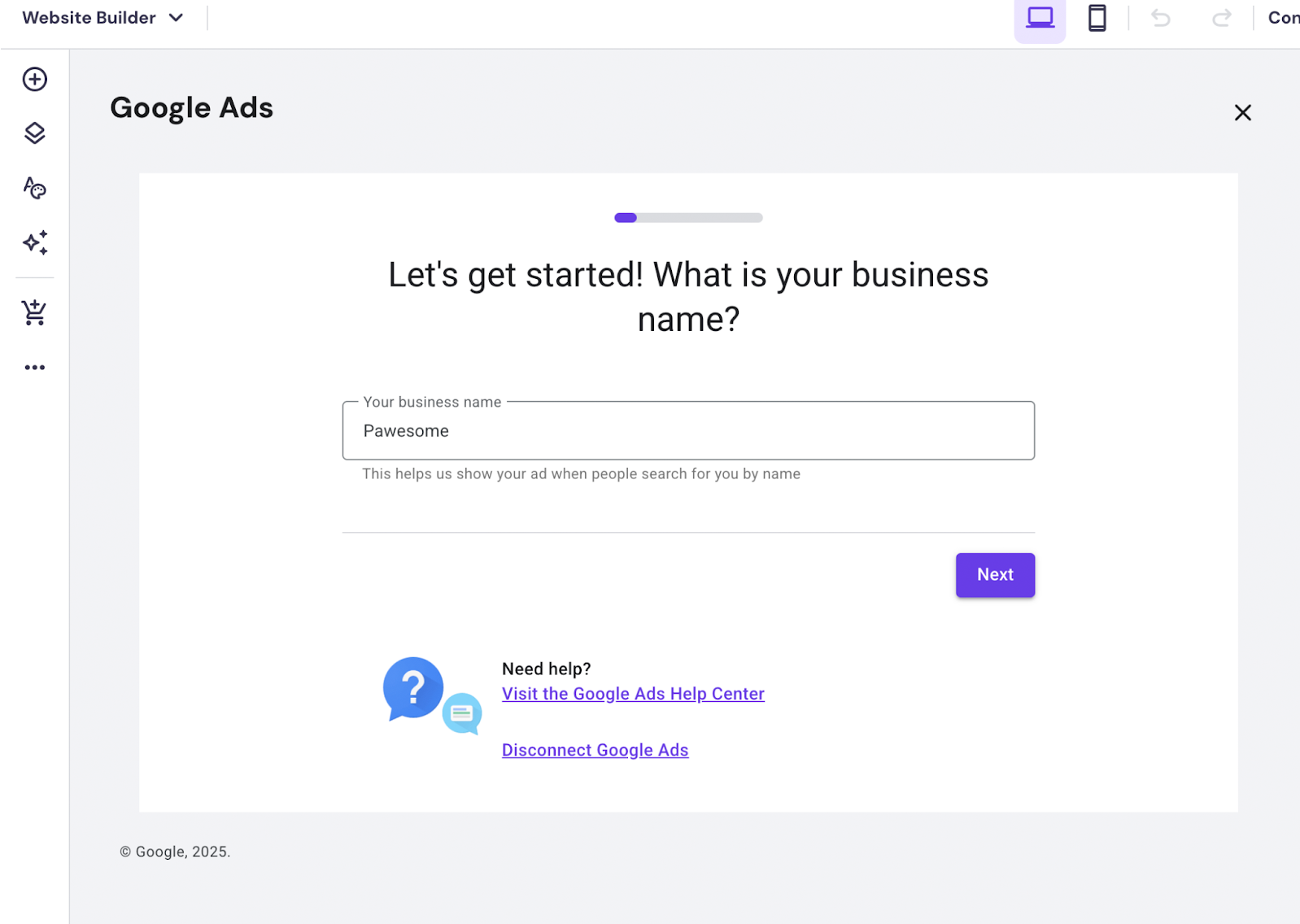
To start with, you’ll need to enter the name of your business, or the brand, as you’d like it to appear within the Ad. Once you’ve done that, click next.
Step 5. Add Your Site’s URL
This step is important, as you need to add the landing page of your website, this is the page where customer will land on when they click your ad.

Step 6. Add Your Ads Goals
Now, you can select your goals. These are the goals that you want to use your ad for. This can be someone purchasing something, or reaching out via a contact from, just select which suits your needs best.

Step 7. Time to Write Your Ad!
Now we get to the fun step! It’s time to write your ad content. Here you can preview the ad content and make any adjustments. You can multiple headlines, descriptions, and even add a call button so users can click one button to call your business. Once done, click next.

Step 8. Add You Logo
It’s time to add your logo and other images that are used for your ad when displayed. You’ll want at least one square image (1:1) and one horizontal image (4:5) for this. In addition, you’ll want a logo image as well, this will be displayed inside the ad itself.
Click next once you’ve uploaded your images.

Step 9. Add or Select Your Keywords
In this step, we are adding your search themes. These are keywords that relate to your business, or the product that you’re trying to advertise. Google Ads will suggest some, but you are able to add your own custom ones as well. Be sure to take the time to decide which keywords work best for you.
Your Google Search Console, keyword report might be super handy with helping here. Once done, click next at the bottom of the page.

Step 10. Who Will See Your Ad
In this step you can select where and to who you want to serve your ad to (who will see it?). You can select near your business address, a specific zip/area code. You can then limit the radius if you have a specific range distance you’d like to see it displayed within.
Once done, click next at the bottom of the page.

Step 11. The Budget
It’s time to set the budget you have for the advert you’ve created so far. This means you can set how much you’d like to spend on this particular campaign. There are some suggested budgets with estimates already shown for you. You can also enter your own value, by clicking “Enter your own budget”.
Once you’ve decided on a budget that works for you, click next.

Step 12. Review Time!
Check all the details that you’ve entered during setup and ensure that they are exactly as you’d like them. Be sure to preview your ad as well, it should appear in the right preview pane. If you do have to make any changes, you can do so by clicking the pencil icon next to what you’d like to update.
Click next if everything is good!

Step 13. One more step!
It’s time to review the terms and conditions and set up your billing information for your account. If you agree to the terms, check the box, then you’ll be directed to Google Ads to enter your payment information and complete the billing setup. Click next to continue.”

Step 14. Launch! 🚀
You can now launch your campaign! Now that’s launched, you can review the reports for your campaign right inside MonsterInsights! Just click Google Ads in the sidebar under Insights on your website to see how things are going!
One last note: make sure that you have updated any other billing details that are needed for your Ads account so you can continue to serve your ad without interruption.
And you’re done! Yay! You’ve launched a new Google Ad campaign from right within your own site, and you can review all that reporting as well in the same place!
If you’re unsure on which keywords to use, check out your Search Console Report in MonsterInsights. You can find out more about that here: How to configure your WordPress website with Google Search Console.
How to Track Conversions
Step 1. WPCode Lite
First, install and activate WPCode Lite.

Step 2. Google Ads
Go to your Google Ads dashboard.

Step 3. Find your conversion action
Next go to Conversions > Summary.

Select the conversion action used for the PMax campaign you created during PAX onboarding.
After completing PAX onboarding, there should be 4 available Conversions goals and actions on this page (Purchase, Submit lead form, Sign-Up, and Contact).
The correct conversion goal should say “Campaigns 1 of 1”, and you should click on the conversion action under i.

Step 4. Copy the Google tag snippet
In Tag Setup, select the Install the tag yourself option.

Choose the second option The Google tag is already installed on all pages, copy the Google tag snippet and head back over to your WordPress dashboard.

Step 5. Insert the Google Tag snippet
In WPCode, click into the Header & Footer page and insert the Google tag snippet under the Header section:

Make sure the inserted snippet is…
- Wrapped with
<script>...</script> - Edited to use
__gtagTrackerinstead ofgtag
Note: Using gtag() or __gtagTracker() will both work with MonsterInsights, but using __gtagTracker() is a better practice for future compatibility.
Once done, make sure to Save Changes.
Step 6. Copy the Event snippet
Back in the Google Ads Tag Setup screen, scroll down to select the Page Load option, and copy the Event snippet. Head back to your WordPress dashboard once more.
Be sure to update the value in the snippet. With the default value of 1, each conversion would record a conversion value of just 1 in the assigned currency (1 CAD in this screenshot).
For Lead Generation advertisers, it’s recommended that this value reflects what you believe a lead is worth to your business (Ex: 15 CAD for every lead that comes in through a form).

Step 7. Add the Event Snippet
In WPCode, click + Add Custom Snippet

For the Event Snippet, we’ll add this as an HTML snippet

Name your snippet then paste the Event snippet into the Code Preview section.

We recommend changing gtag to use __gtagTracker.
For the Insertion section, we’ll use the default Auto-Insert method and Site Wide Header location

Next, under Smart Conditional Logic, you’ll enable Enable Logic > then set the conditions to Show This code snippet if > Page URL > Contains > add your page URL where the conversion will happen.

Finally, Activate the snippet then click Save Snippet

And with that your event should be inserted on your pages, and be ready to track conversions!