
Ready to start tracking and reporting Google Ads conversions right inside of MonsterInsights Lite?
In just a few steps, you can launch impactful campaigns right from the comfort of your WordPress dashboard, helping you drive high-intent traffic to your site with just a few clicks.
If you’re new to Google, get $500 in Ad credits when you spend your first $500 within 60 days* (T&C’s apply)
In this article, we’ll walk you through the process of how to quickly get set up for launching a new Google Ad campaign right inside MonsterInsights.
Creating a Campaign in MonsterInsights Lite
Step 1. Access Google Ads in MonsterInsights
Log into your website’s admin area and click Insights in the sidebar. Then, under Insights, click Google Ads.

Step 2. Getting Started
After clicking the Google Ads sidebar, a new page will load. Click the blue “Get Started” button.
Note: If WooCommerce is installed, you’ll be asked to specify if you sell physical (shipped) or digital products. Select “yes” for physical products, otherwise select “no.”

Step 3. Google Ads Dashboard
Click the Get Started button. If you’re not logged in to Google Ads, you’ll be prompted to do so; otherwise, you’ll proceed to the next page.

Step 4. Creating Your New Campaign
Enter your business or brand name as you want it to appear in the Ad, then click next.
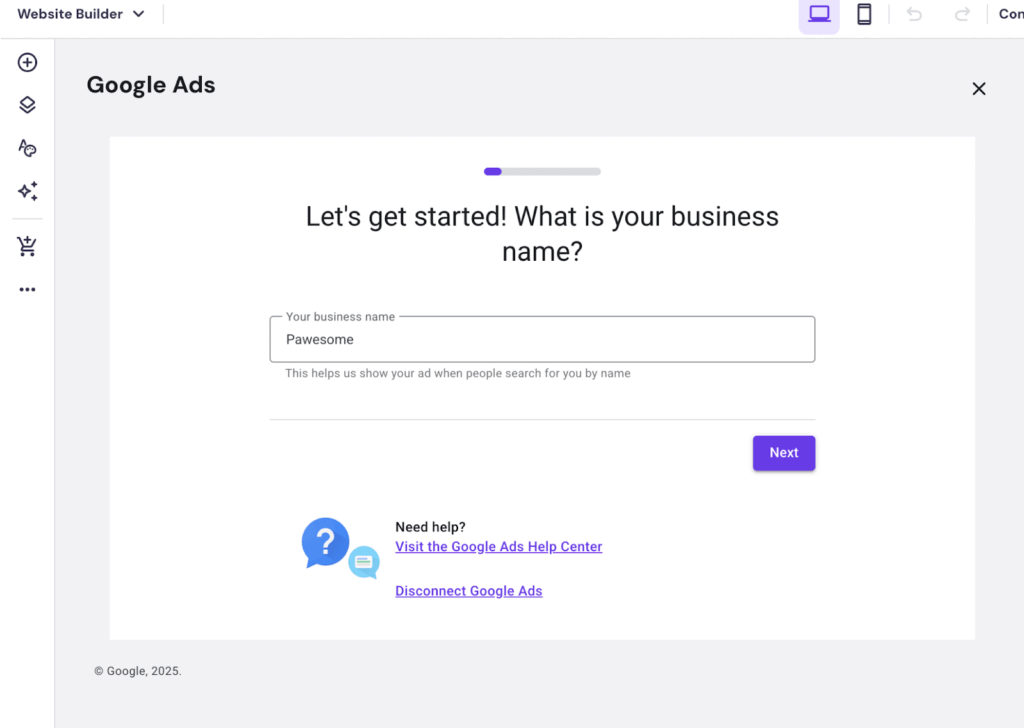
Step 5. Add Your Site’s URL
Add your website’s landing page, where customers arrive after clicking your ad.

Step 6. Add Your Ads Goals
Next, select your ad goals.

Step 7. Write Your Ad
Write your ad content. Then preview and adjust headlines, descriptions, and optionally add a call button. Click next when finished.

Step 8. Add You Logo
Upload your ad image. You need at least one square (1:1), one horizontal (4:5), and one logo image for display within the ad. Click next after uploading.

Step 9. Add or Select Your Keywords
Add your search themes, then click next when finished.

Step 10. Who Will See Your Ad
Select the ad’s serving location and audience. You can choose to display the ad near your business address or a specific zip/area code, then set a radius for the display range.
Click next once complete.

Step 11. The Budget
Set the budget for your advert campaign. Suggested budgets with estimates are available, or enter your own budget. Once decided, click next.

Step 12. Review
Review all entered setup details and the ad preview (visible in the right pane) for accuracy. Edit any necessary changes by clicking the pencil icon next to the item. Click next when satisfied.

Step 13. One more step!
Review the terms and conditions and set up billing. Check the box to agree, then click next to proceed to Google Ads to enter payment details and finalize billing.

Step 14. Launch! 🚀
You can now launch your campaign! Now that it’s launched, you can review the reports for your campaign right inside MonsterInsights! Just click Google Ads in the sidebar under Insights on your website to see how things are going!
How to Track Conversions
Step 1. WPCode Lite
First, install and activate WPCode Lite.

Step 2. Google Ads
Go to your Google Ads dashboard.

Step 3. Find your conversion action
Next go to Conversions > Summary.

Select the conversion action used for the PMax campaign you created during PAX onboarding.
After completing PAX onboarding, there should be 4 available Conversions goals and actions on this page (Purchase, Submit lead form, Sign-Up, and Contact).
The correct conversion goal should say “Campaigns 1 of 1”, and you should click on the conversion action under i.

Step 4. Copy the Google tag snippet
In Tag Setup, select the Install the tag yourself option.

Choose the second option The Google tag is already installed on all pages, copy the Google tag snippet and head back over to your WordPress dashboard.

Step 5. Insert the Google Tag snippet
In WPCode, click into the Header & Footer page and insert the Google tag snippet under the Header section:

Make sure the inserted snippet is…
- Wrapped with
<script>...</script> - Edited to use
__gtagTrackerinstead ofgtag
Note: Using gtag() or __gtagTracker() will both work with MonsterInsights, but using __gtagTracker() is a better practice for future compatibility.
Once done, make sure to Save Changes.
Step 6. Copy the Event snippet
Back in the Google Ads Tag Setup screen, scroll down to select the Page Load option, and copy the Event snippet. Head back to your WordPress dashboard once more.
Be sure to update the value in the snippet. With the default value of 1, each conversion would record a conversion value of just 1 in the assigned currency (1 CAD in this screenshot).
For Lead Generation advertisers, it’s recommended that this value reflects what you believe a lead is worth to your business (Ex: 15 CAD for every lead that comes in through a form).

Step 7. Add the Event Snippet
In WPCode, click + Add Custom Snippet

For the Event Snippet, we’ll add this as an HTML snippet

Name your snippet then paste the Event snippet into the Code Preview section.

We recommend changing gtag to use __gtagTracker.
For the Insertion section, we’ll use the default Auto-Insert method and Site Wide Header location

Next, under Smart Conditional Logic, you’ll enable Enable Logic > then set the conditions to Show This code snippet if > Page URL > Contains > add your page URL where the conversion will happen.

Finally, Activate the snippet then click Save Snippet

And with that your event should be inserted on your pages, and be ready to track conversions!