Your Traffic Spiked. Do You Know What You Did That Week?
MonsterInsights lets you log product launches, campaigns, and site updates directly in WordPress – then shows you exactly how each one moved the needle. No guesswork, no tab-switching, no piecing it together from memory.
Finally, Site Notes for WordPress that’s both Easy and Powerful
MonsterInsights connects your actions to your analytics automatically – so you always know what caused that spike or drop. Here are the features that make MonsterInsights Site Notes the best annotation tool for WordPress.
Log Notes From Anywhere
Add a Site Note directly from the Overview Report graph, from the dedicated Site Notes screen, or automatically when publishing a post or page. Three ways to log – all in under 30 seconds.
Notes on Your Analytics Graph
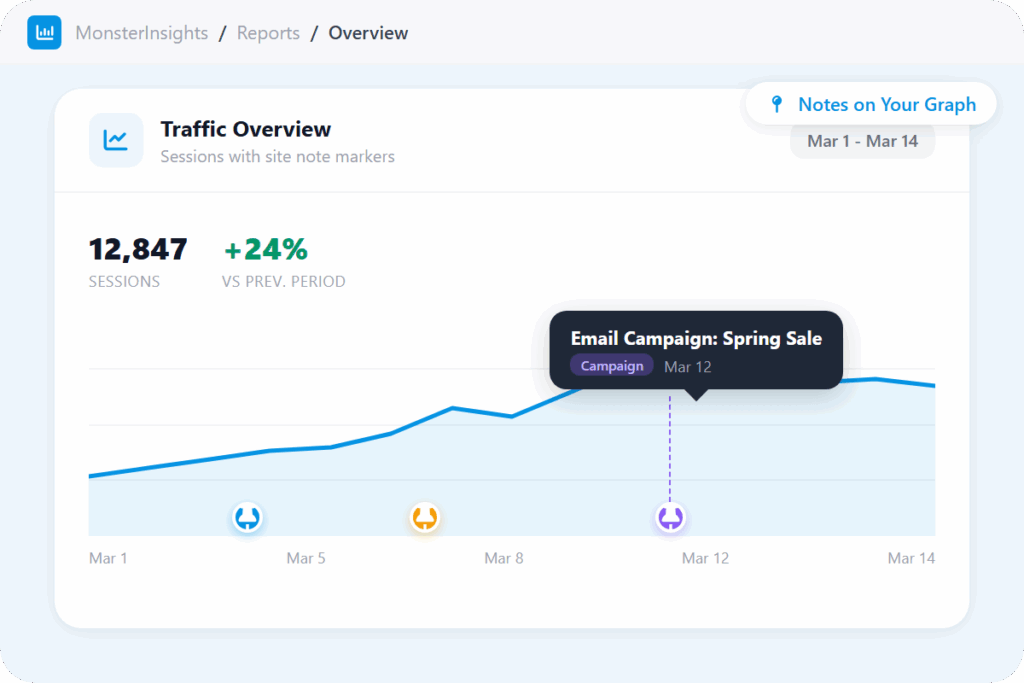
Your Site Notes appear as markers directly on the Overview Report graph inside WordPress. Spot a traffic change and instantly see which note explains it.
Auto-Create Notes on Publish
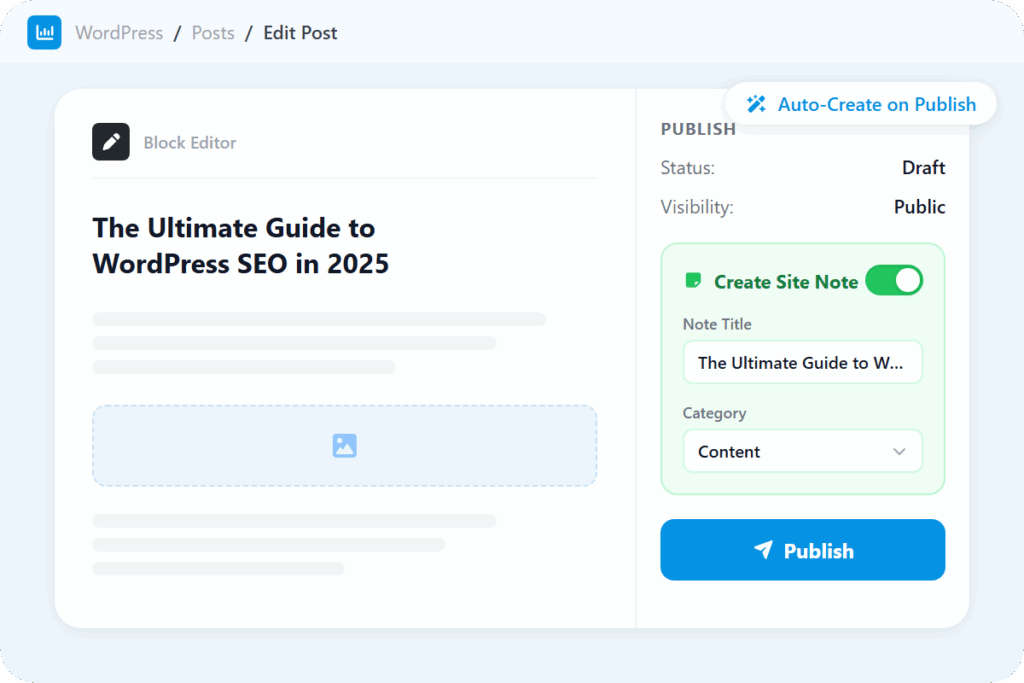
Publishing a new post or page? Toggle one option in the WordPress editor and MonsterInsights logs a Site Note the moment it goes live. Your timeline stays accurate without any manual effort.
Categorized Notes
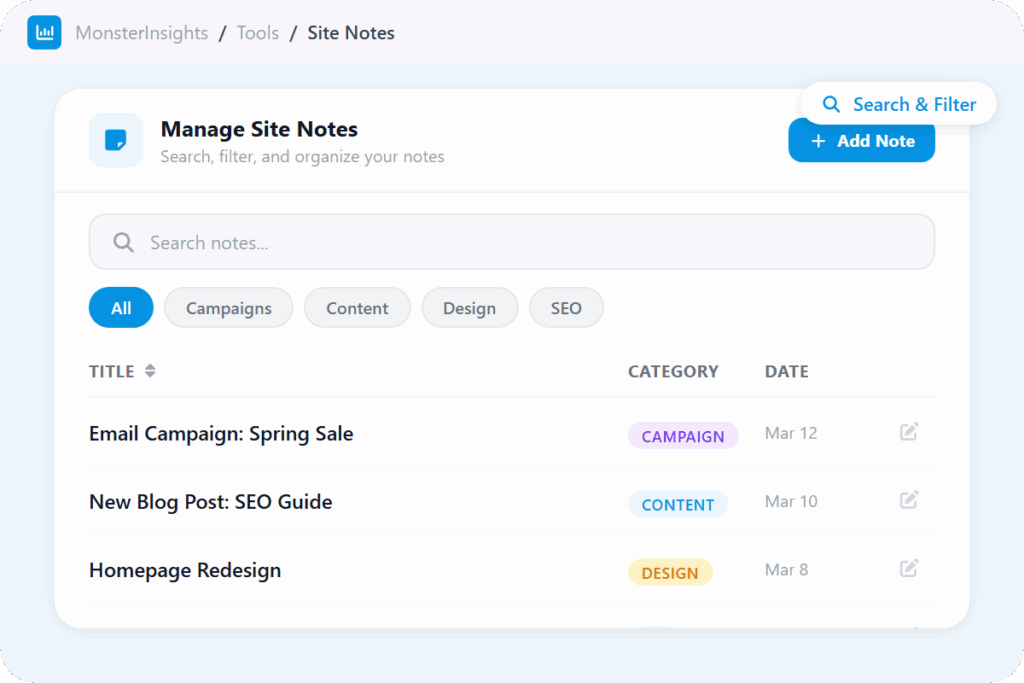
Assign each note a category – campaigns, content, design changes, SEO updates, and more. Keeping your log organized from day one means finding the right note later takes seconds, not minutes.
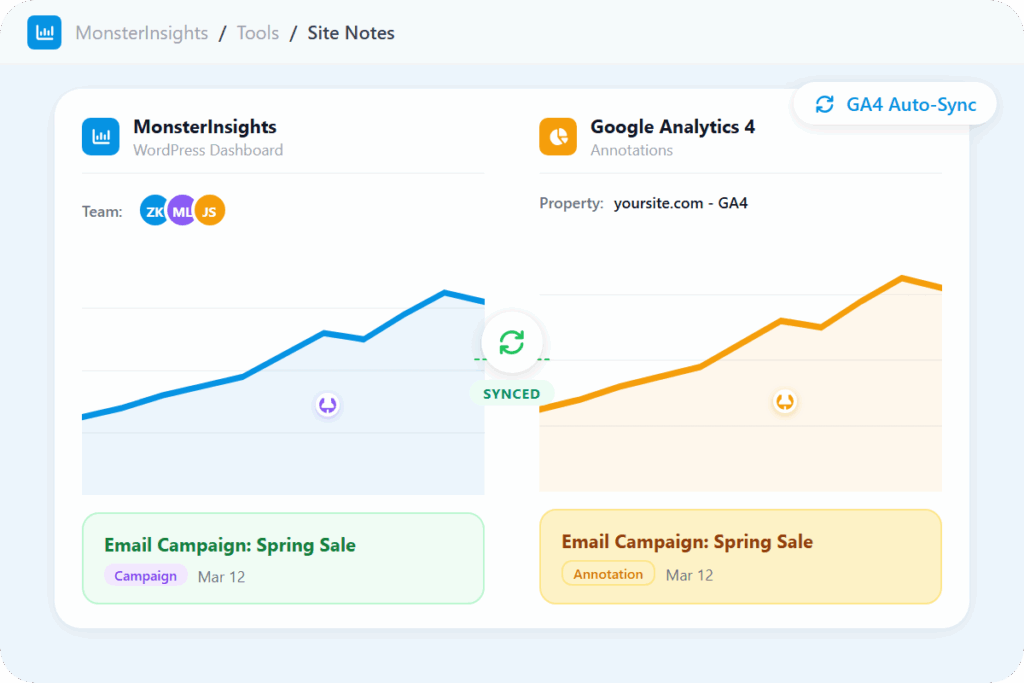
Google Analytics 4 Auto-Sync
Add a note in WordPress and it automatically appears in Google Analytics 4 as an annotation. Your data stays in sync across both platforms – no copy-pasting, no duplicate work.
Customizable Date Ranges
Run any report across any time window. Compare performance before and after a campaign, launch, or site change – down to the exact dates that matter to you.
Exceptions Report
Get notified the moment MonsterInsights detects an unusual traffic spike, drop, or conversion shift. Pair it with Site Notes to know not just that something changed – but why.
Flexible Report Exports
Export any report to PDF, CSV, or Excel in one click. Share results with clients or your team in whatever format they actually use – with your Site Notes providing the context behind every number.
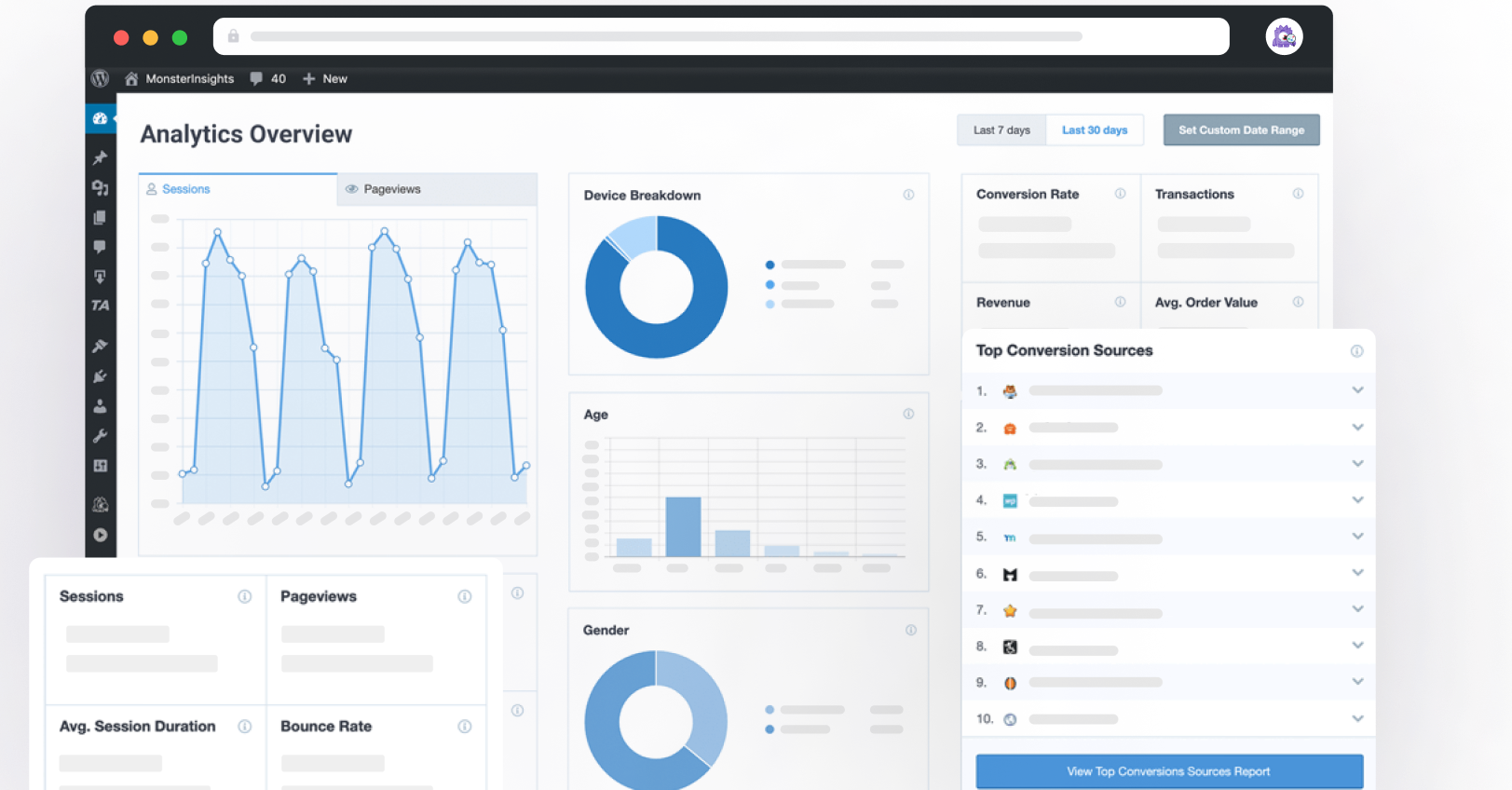
Analytics Overview Report
See traffic, revenue, and more on one chart – with a Metrics button to choose exactly what you track. Your Site Notes appear as markers directly on this graph, so you can see what caused every spike or drop at a glance.
“It is so helpful that I am able to get a detailed report of my site traffic in a more advanced way. It also helped me work on driving more potential traffic and results with the help of its rich analytic tool.”
Joshua Samuel
“I love just having sensible, easy-to-understand data available at a glance.”
Peter Witham
“It has eliminated the aggravations caused by GA4. The Insights > Report gives me exactly what I need.”
Why Over 3 Million Users
MonsterInsights for Site Notes
Here are just a few reasons why smart business owners, eCommerce sites, marketers, and product & CX teams trust MonsterInsights to track key website events – because a traffic spike without context is just a mystery.
Keep a Running Log of Everything That Changes on Your Site
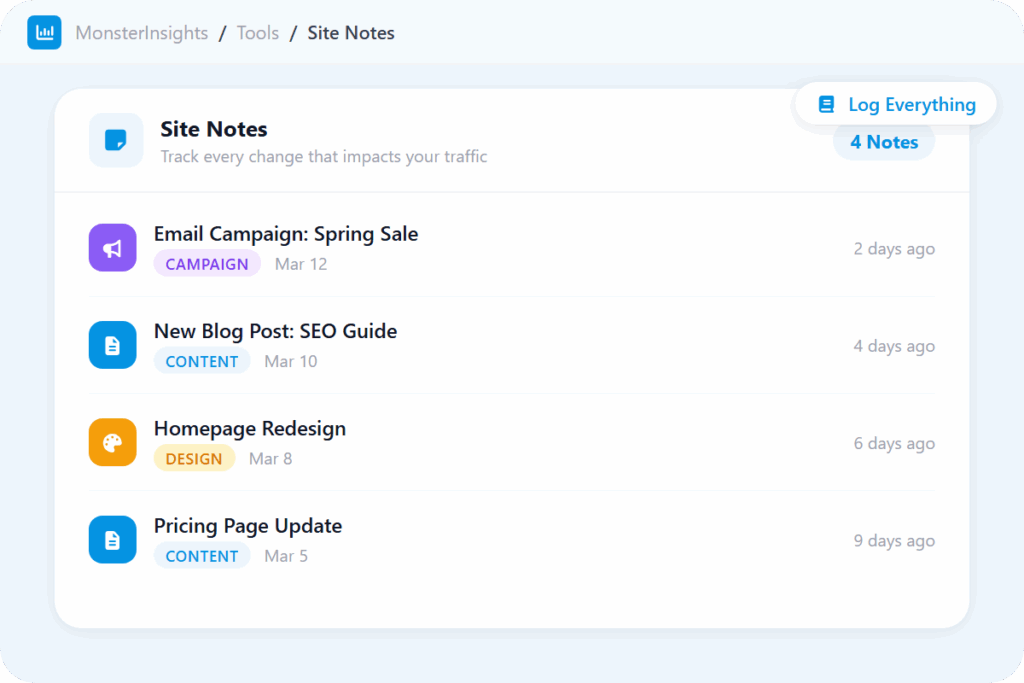
Every time you publish a post, run a campaign, update your pricing page, or push a design change, something on your site shifts. MonsterInsights gives you a simple way to log all of it – with a title, date, category, and optional media – directly inside WordPress. No sticky notes, no Slack threads, no spreadsheet to maintain.
Over time, you build a searchable record of what changed and when – organized, accessible, and always right where your analytics already live.
Match Every Traffic Spike – or Drop – to the Action That Caused It
Sent a promotional email last Tuesday? Ran a flash sale? Updated a key landing page? Add a Site Note and you’ll see the before-and-after traffic impact right on your performance graph.
No more piecing it together from memory. You’ll know exactly which actions moved the needle – so you can double down on what works and stop spending time on what doesn’t.
Let MonsterInsights Log Notes for You When You Publish
Content teams publish fast. Manual logging is the first thing to go. MonsterInsights has a fix: toggle the auto-create option directly in the WordPress editor, and the moment your post or page goes live, the note is created for you – with the title, date, and category pre-filled.
You can customize it before publishing, or just leave it as-is. Either way, your Site Notes timeline stays accurate without adding a single extra step to your workflow.
Find Any Note in Seconds – From Your Graph or Your Dashboard
All your notes live in one place at Insights > Site Notes. Sort by date or category, filter by type, and search for any specific entry in seconds. You can edit, restore, or delete notes at any time – so your log stays accurate as campaigns evolve and details change.
Rather see them in context? Notes appear as markers directly on the Overview Report graph. Hover over any one to see what changed that day – the fastest way to connect a traffic movement to its cause without leaving your dashboard.
Keep Your Whole Team Aligned – and Your Data in Sync
Every note you add is visible to your whole team inside WordPress. Assign categories, attach screenshots or creative assets, and keep your launch timeline documented in one organized place. When everyone works from the same record, fewer things fall through the cracks.
And with the latest update, Site Notes now sync automatically to Google Analytics 4. Add a note in WordPress and it appears as an annotation in GA4 – so your context travels with your data, across every tool your team uses.
Frequently Asked Questions
Do you have questions about MonsterInsights? See the list below for our most frequently asked questions. If your question is not listed here, then please contact us.
A Site Note is a log entry you add inside MonsterInsights to record a key change on your site – a new post, a campaign launch, a design update, or anything else that might affect your traffic. Notes appear as markers on your performance graph so you can instantly connect your actions to your results.
Three ways: click “Add Site Note” directly on the Overview Report graph, go to Insights > Site Notes and create one from the dedicated screen, or enable auto-creation in the WordPress editor when pblishing a post or page. Each note includes a title, date, category, and optional media attachment.
Site Notes give you a clear record of your website activity alongside your analytics data. By logging key updates and events, you can link your actions to performance trends, understand what’s working, and make smarter decisions – without relying on memory or digging through old messages.
Anything that could affect your traffic or conversions: blog posts, email campaigns, ad launches, social media pushes, landing page changes, SEO updates, design changes, and product launches. The more context you log, the easier it is to understand your data – and explain it to others.
Yes – that’s the latest addition to Site Notes. When you add a note in MonsterInsights, it automatically appears in your GA4 account as an annotation. You get the full context in both places without any extra steps.
Stop Wondering What Caused That Traffic Change. Start Knowing.
Join over 3 million website owners and start making data-driven decisions to grow your business.